
[Set up your Crew]
[Goal]
You are done when your Crew answers you on Discord.
- Claude Code or Codex
- Sign in with your own account in Cockpit, and make sure it replies to you in a normal task.
- On Windows
- Crews work on Windows too (alpha; update from the Microsoft Store). If a Crew using Codex replies with “?”, switch its agent to Claude.
- Discord sign-in
- You will use it to open the Discord Developer Portal in your browser.
[Steps]
You can also ask your Crew “Help me connect to Discord.” The steps below are for doing it yourself. The Discord screenshots show Discord in Japanese; the buttons are in the same places.
Update Cockpit
- Update to 4.130 or later. When it can, Cockpit turns on Message Content Intent for you while connecting to Discord
Create a Crew in Cockpit
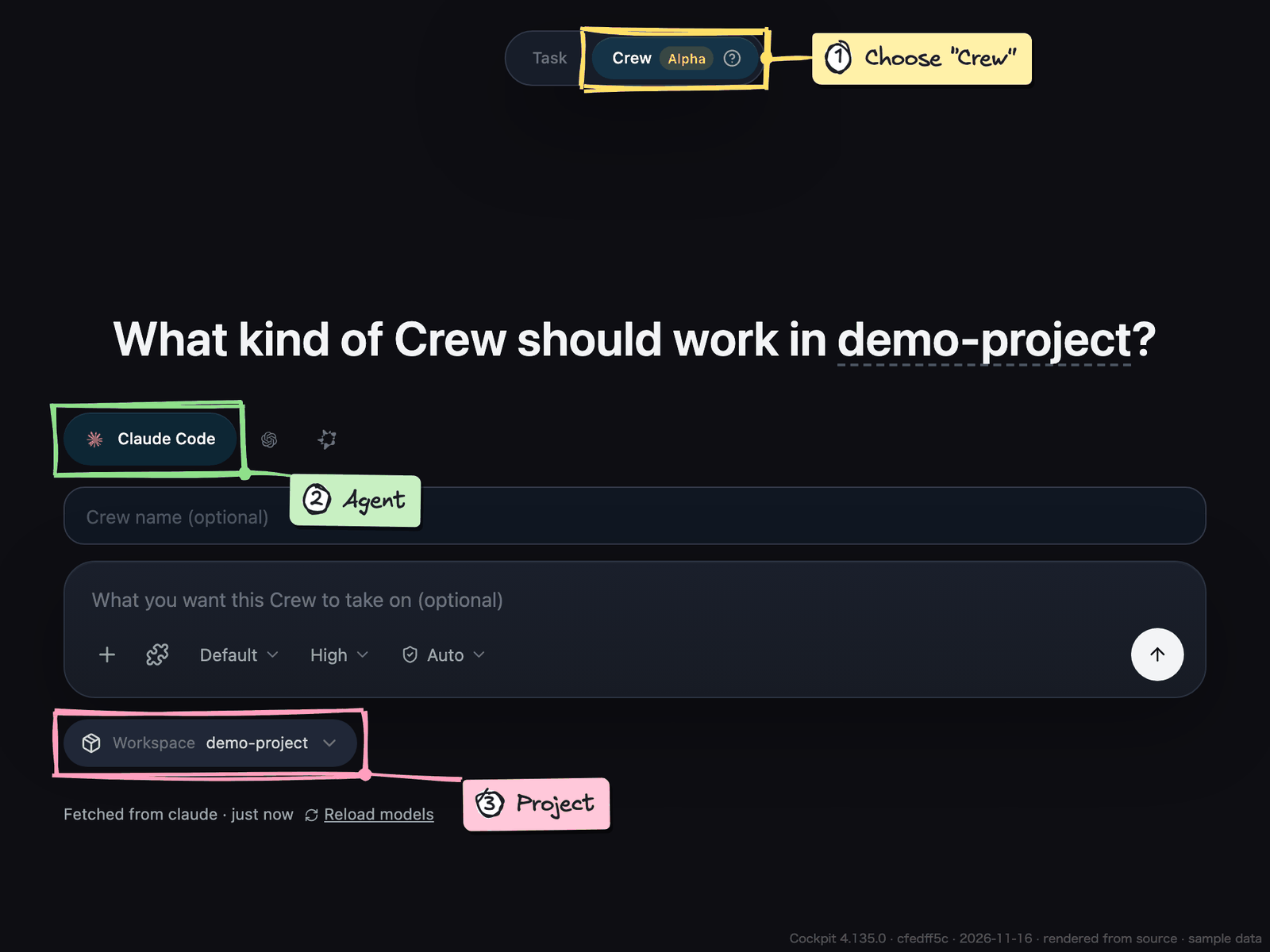
- Click “+” at the top left to open New task, and choose “Crew” in the switch
- Choose a project and an agent (Claude Code or Codex)
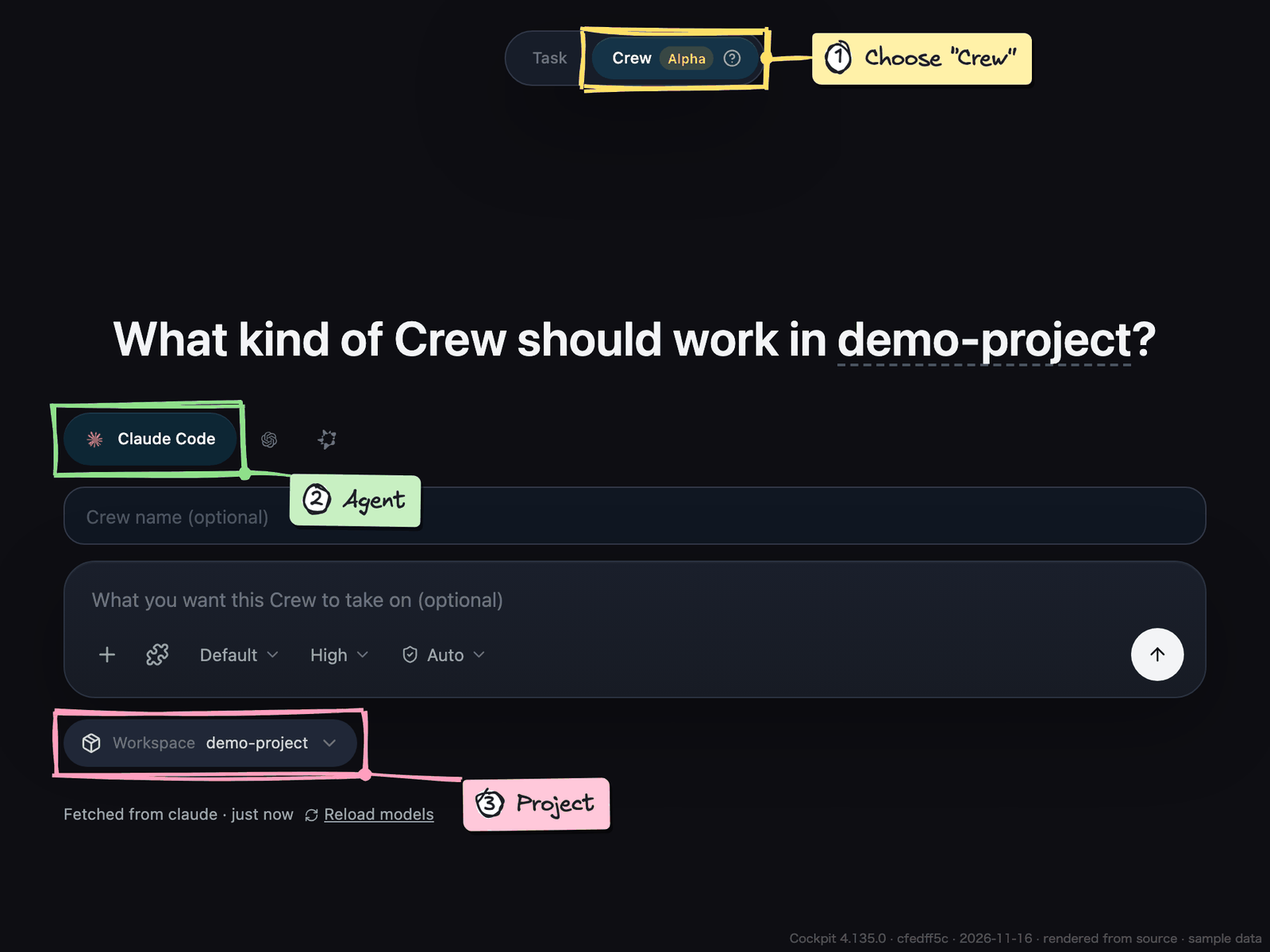
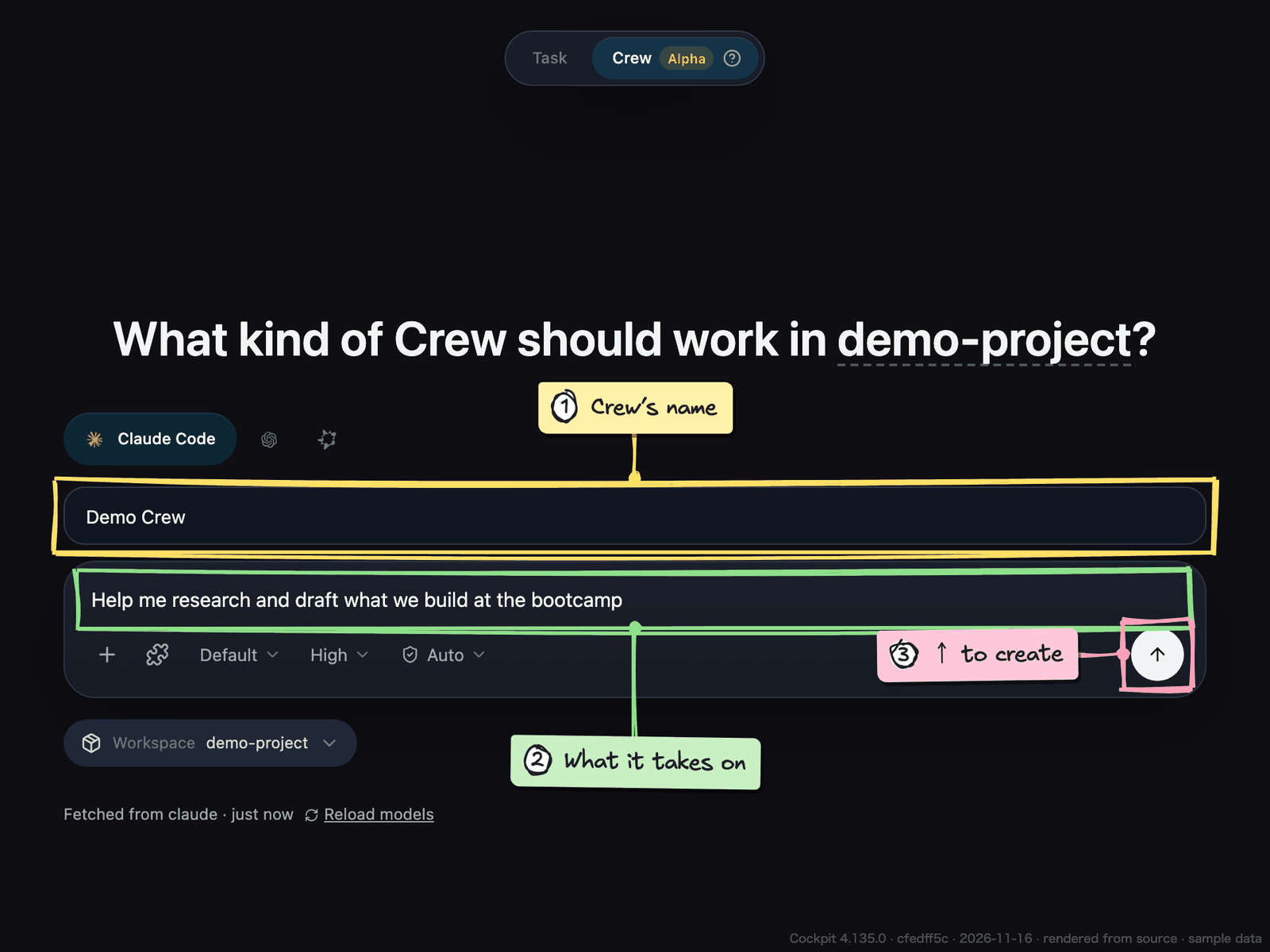
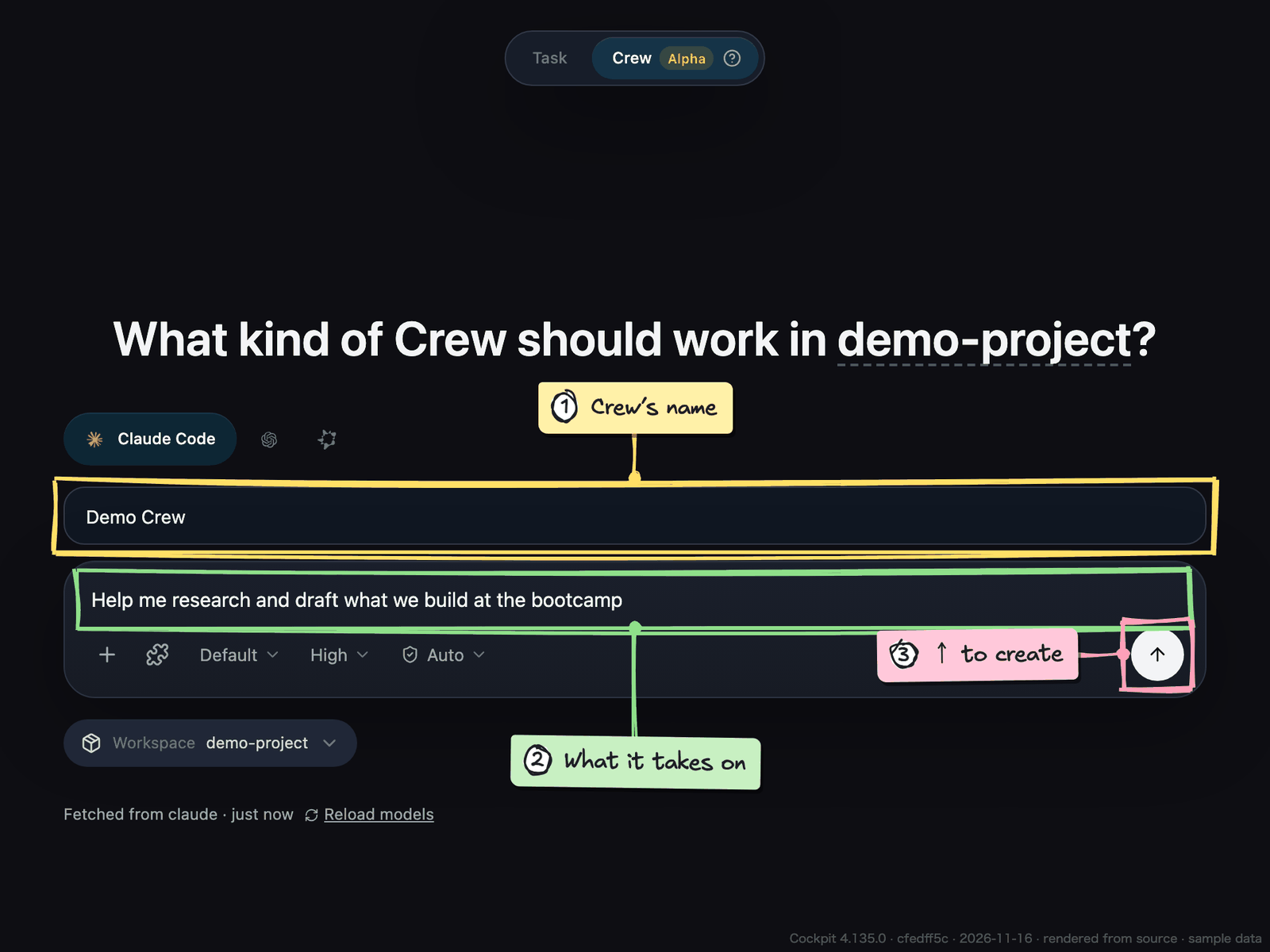
- In “What you want this Crew to take on”, write its role in one line, and create it
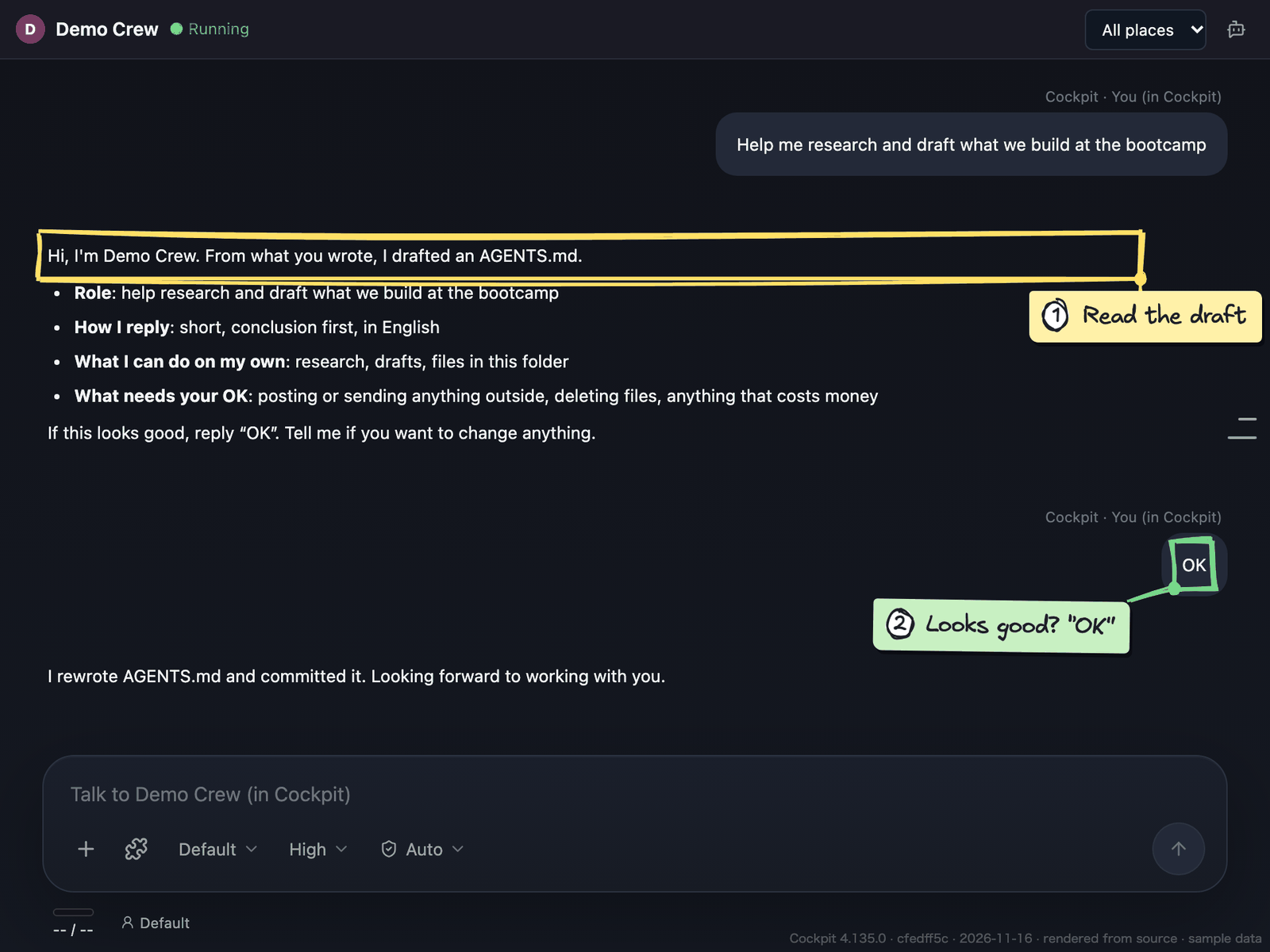
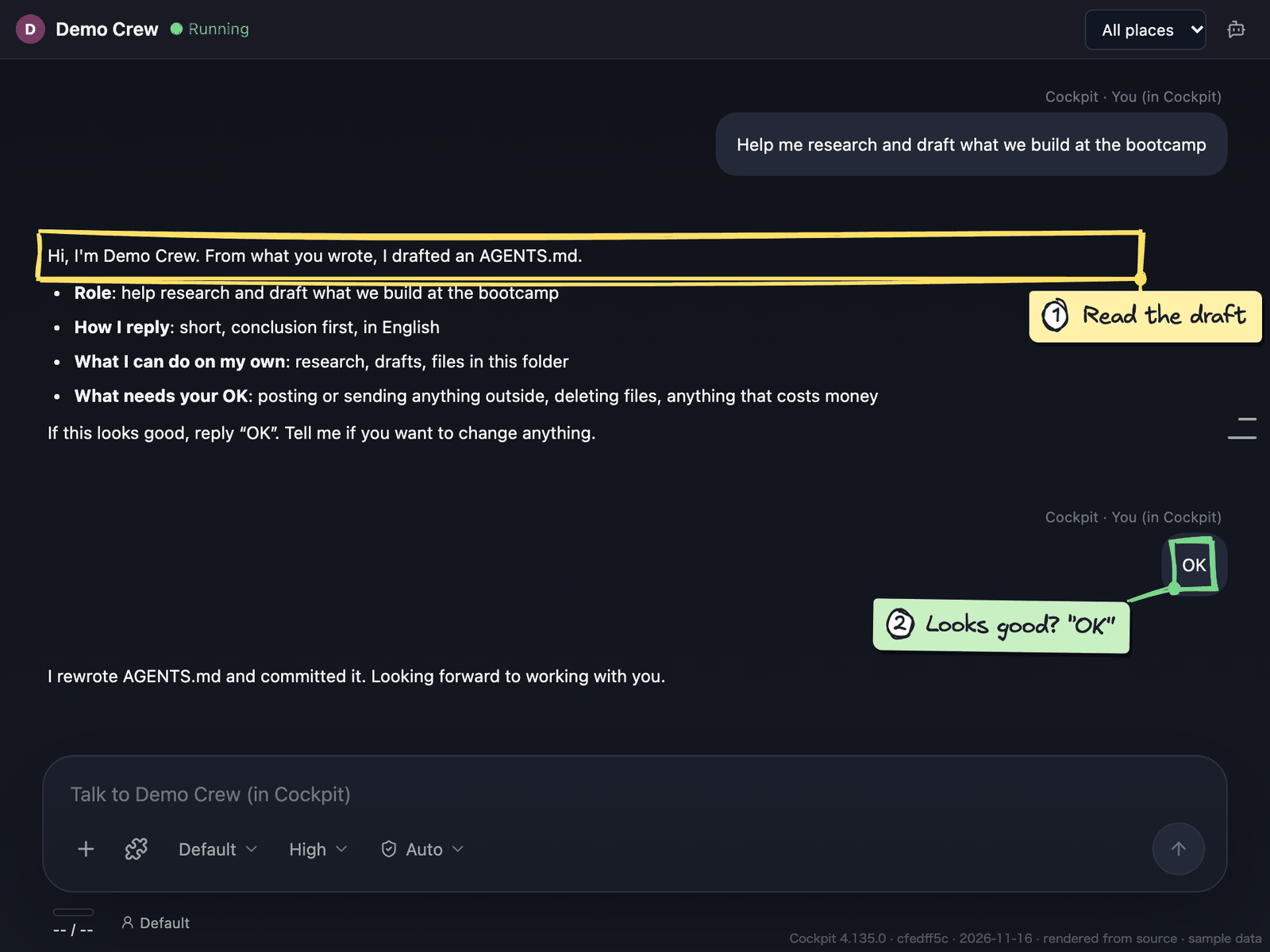
- Answer the Crew’s questions. If its proposed instructions (AGENTS.md) look good, reply “OK”
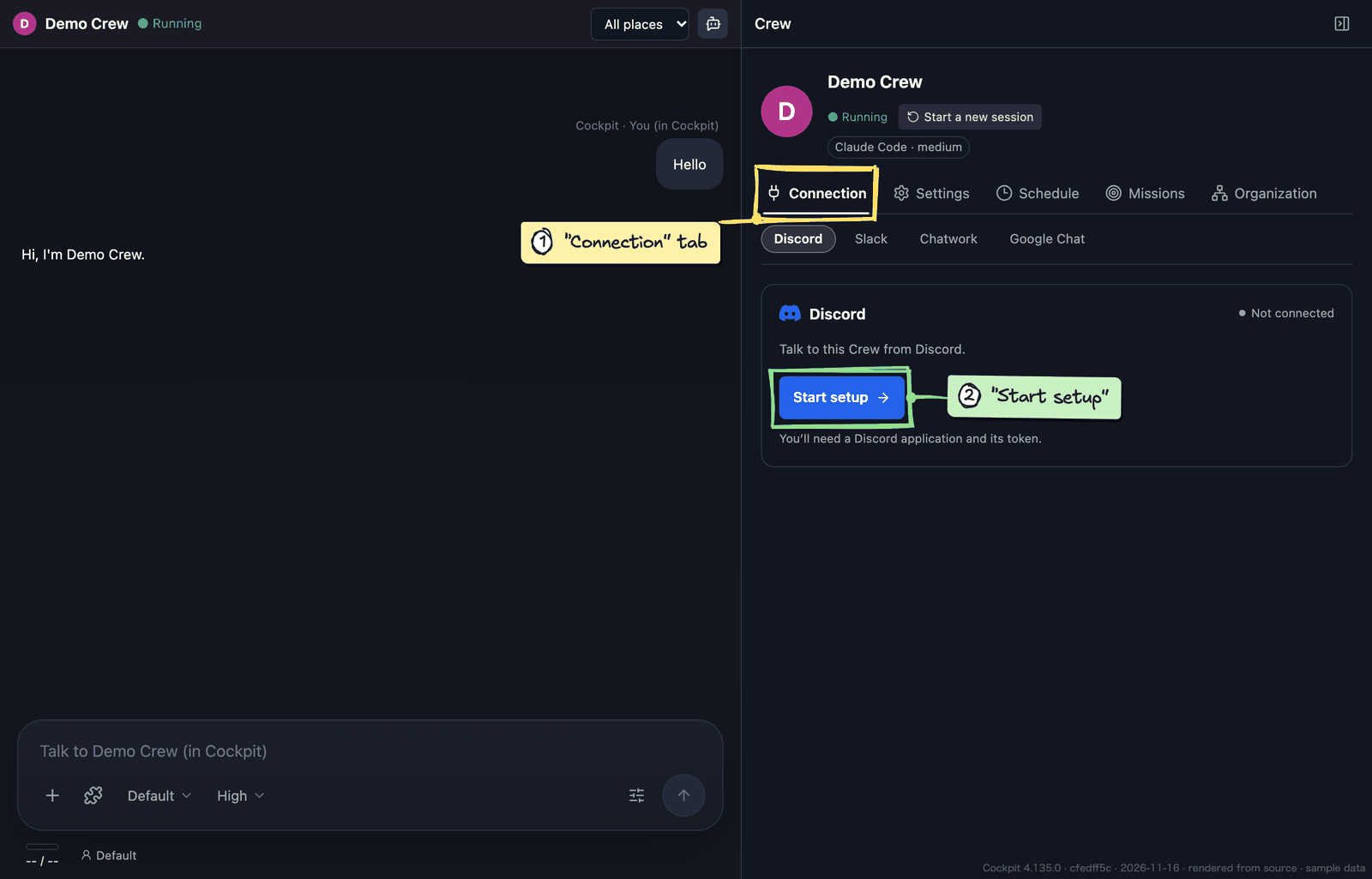
You can already talk to it inside Cockpit.
Create a Discord app
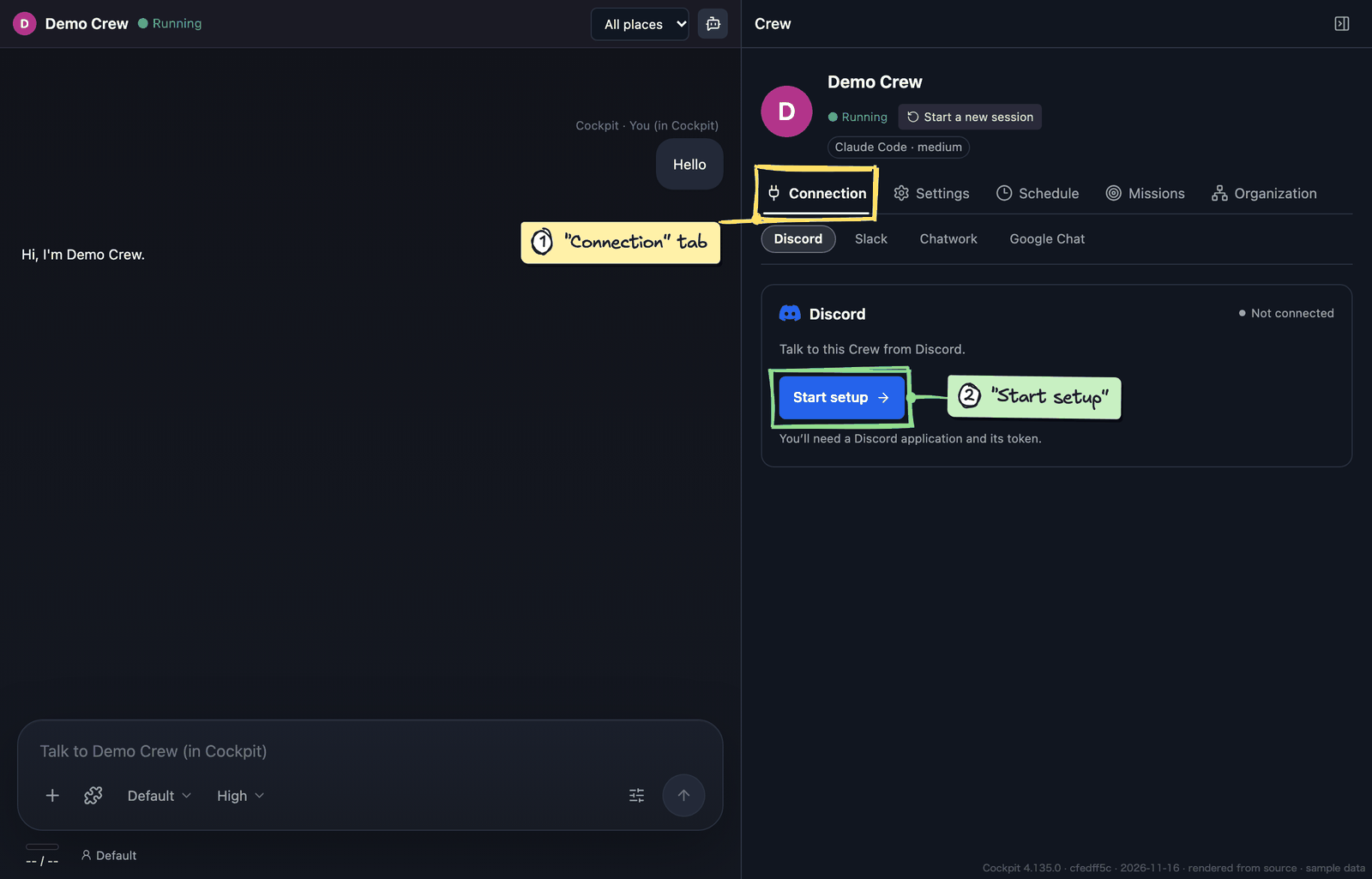
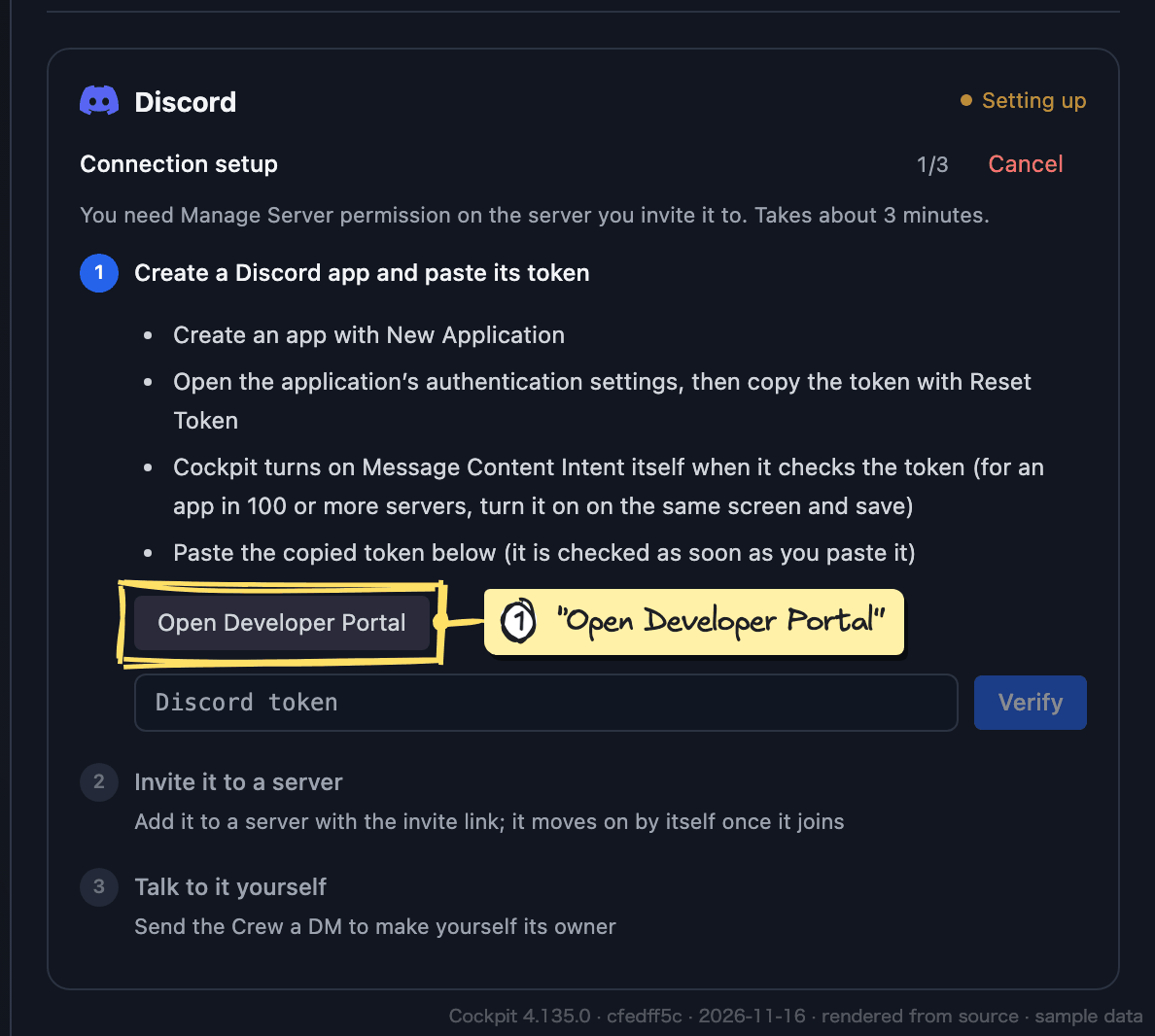
- On the Crew’s screen, open the “Connection” tab, click “Start setup”, then “Open Developer Portal”
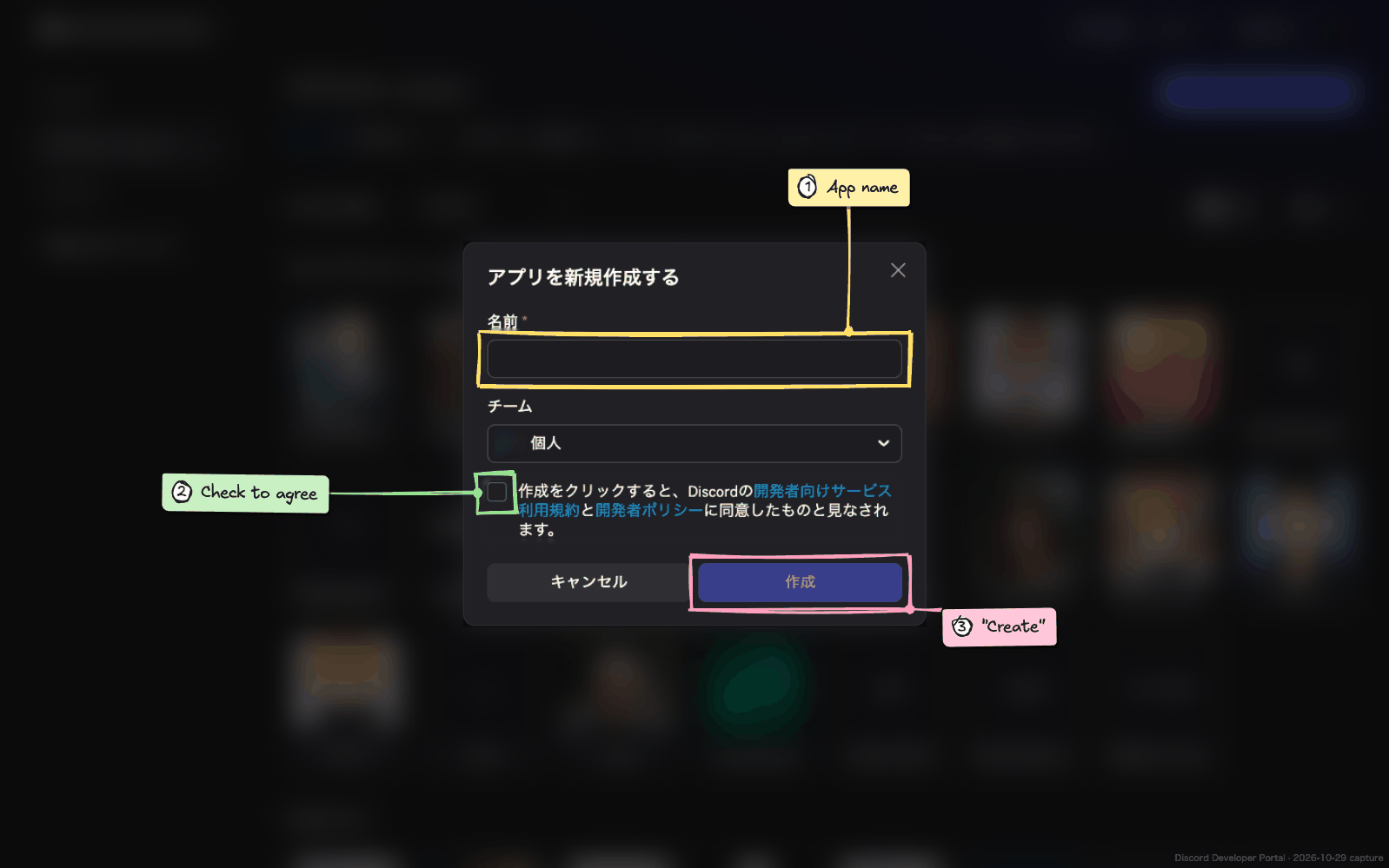
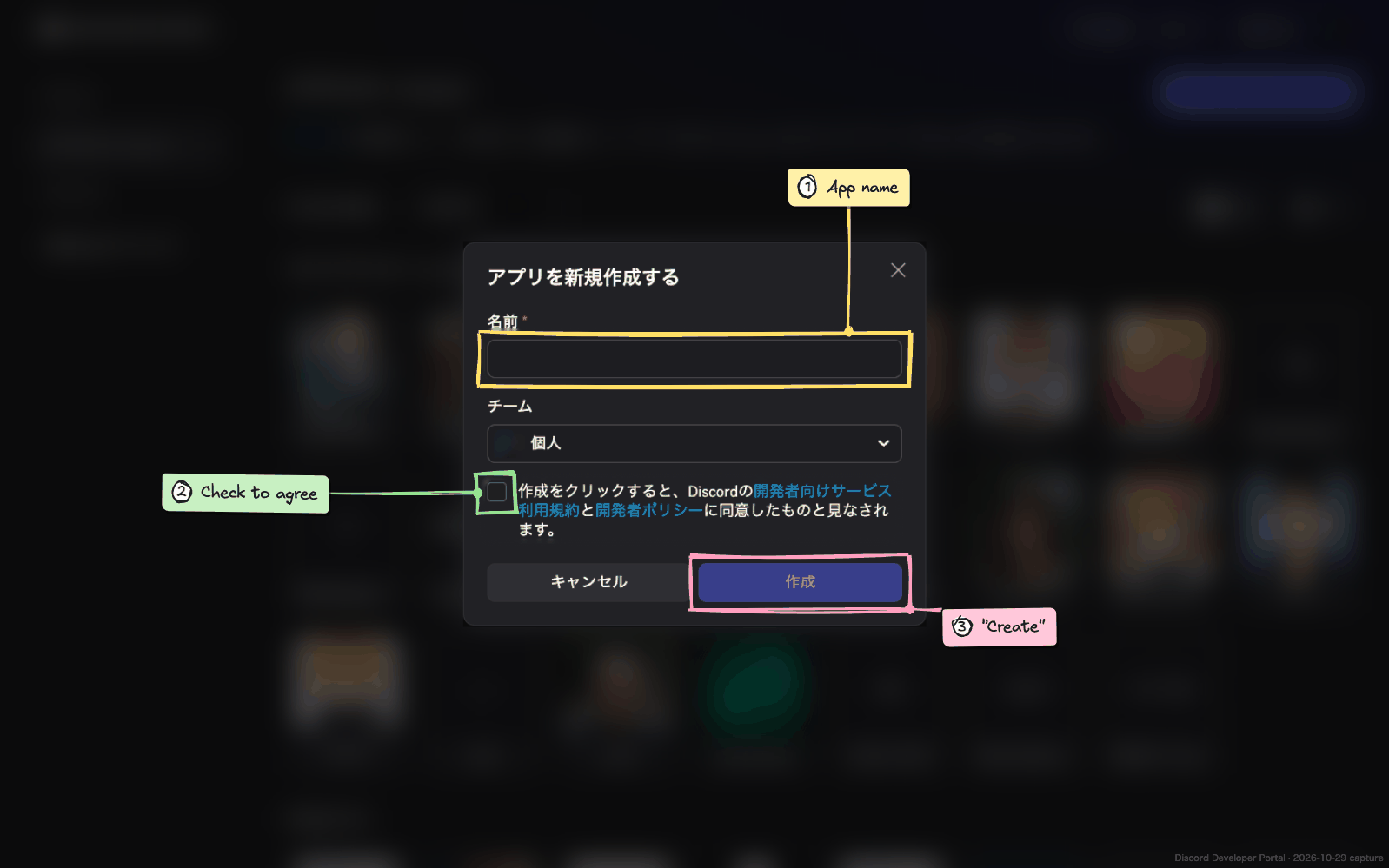
- Click “New Application” at the top right
- Enter a name, agree to the terms, and click “Create”
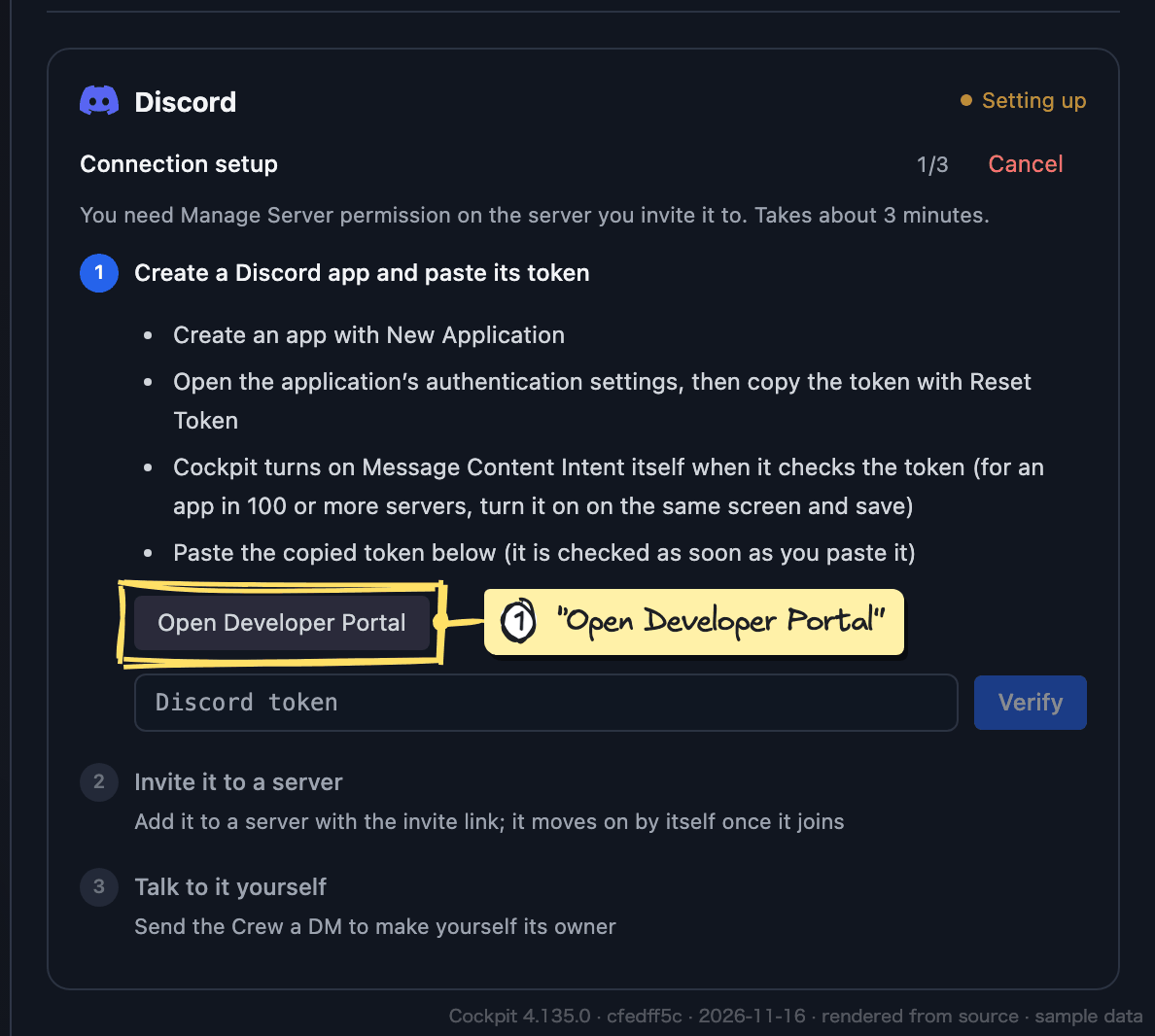
Copy the token
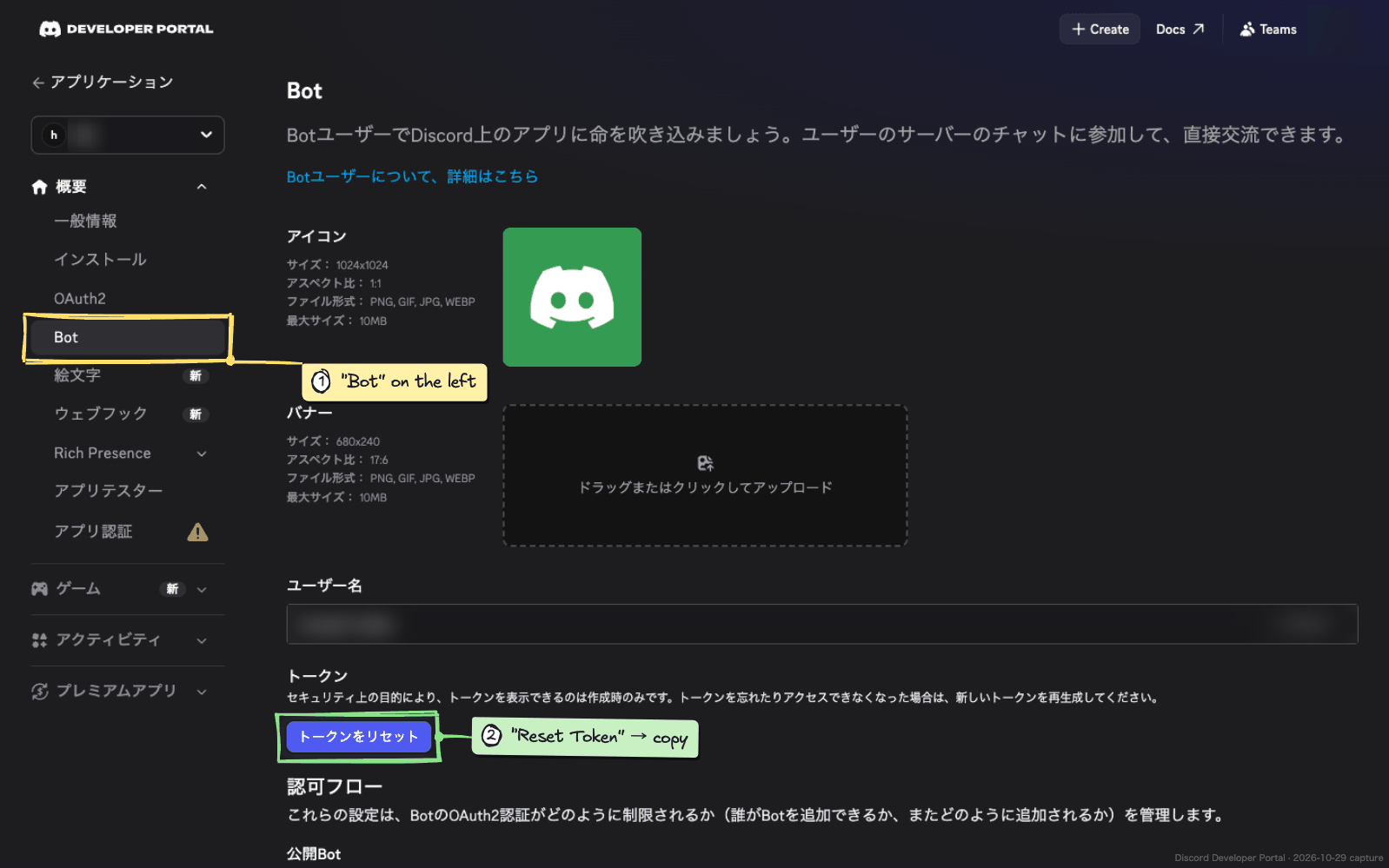
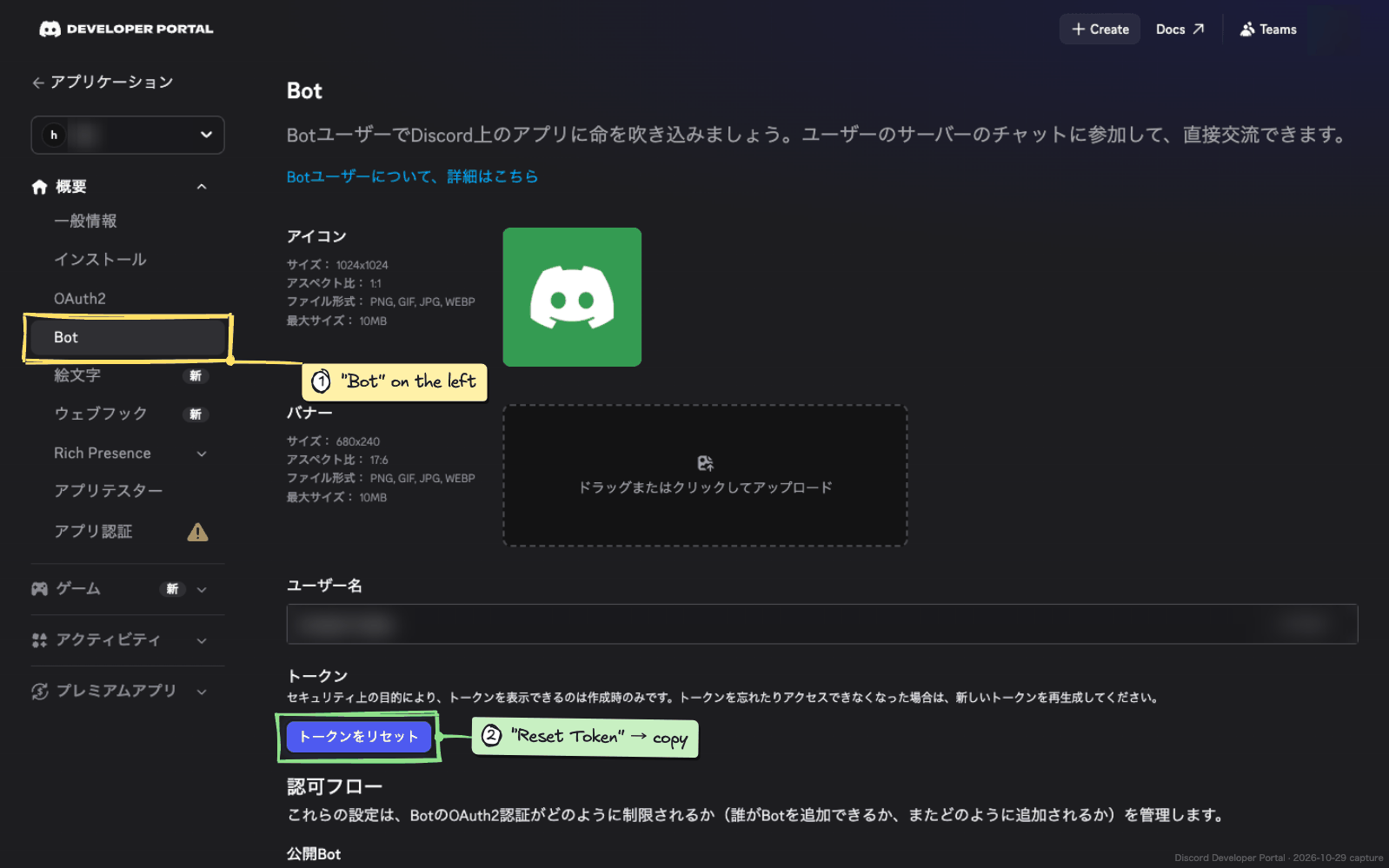
- Open “Bot” in the menu on the left
- Click “Reset Token” and copy the token
Treat the token like a password. Do not show it to anyone or paste it into a chat.
You can see it only once. If you lose it, reset it again.
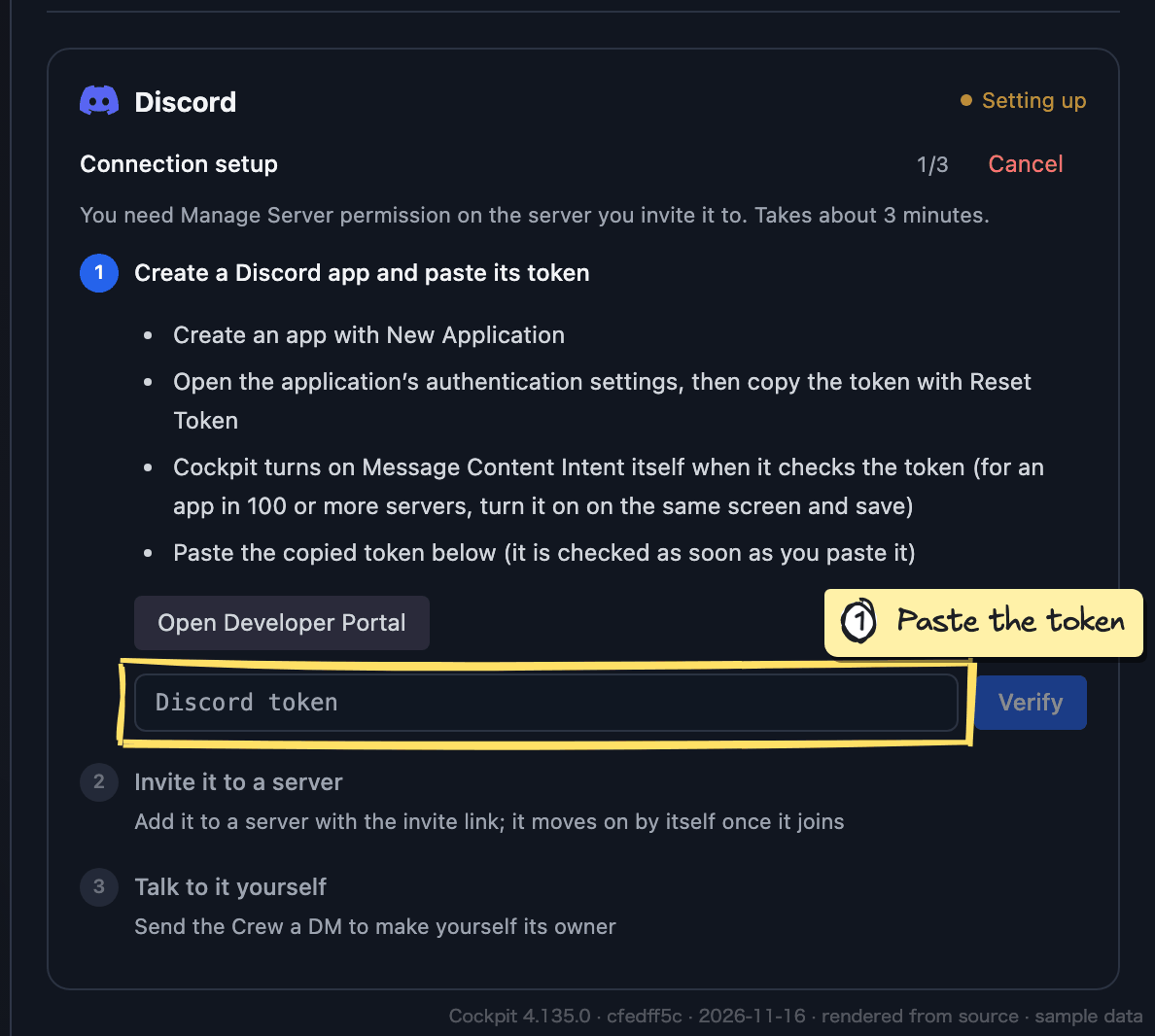
Paste the token into Cockpit
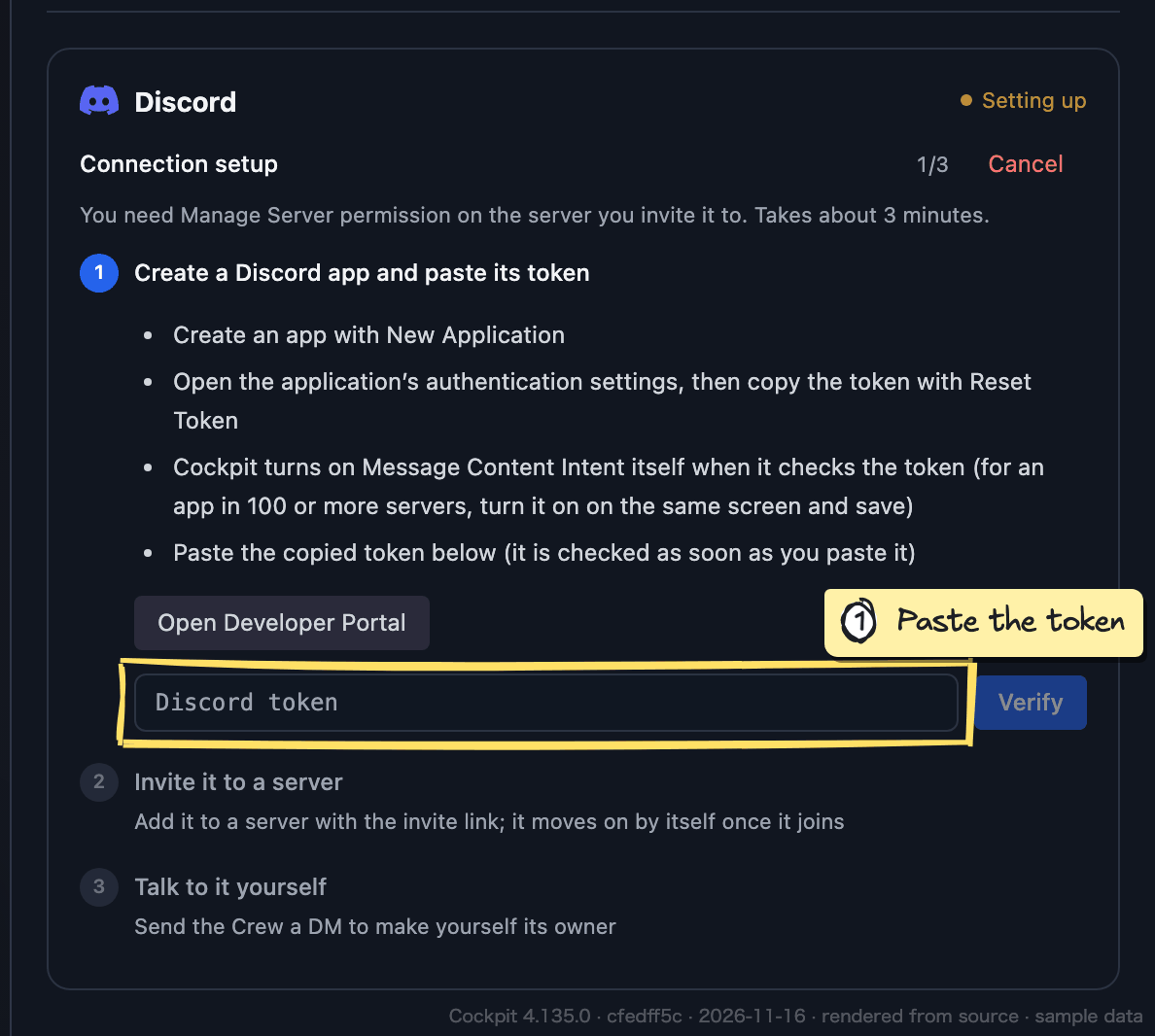
- Paste it into the “Discord token” field
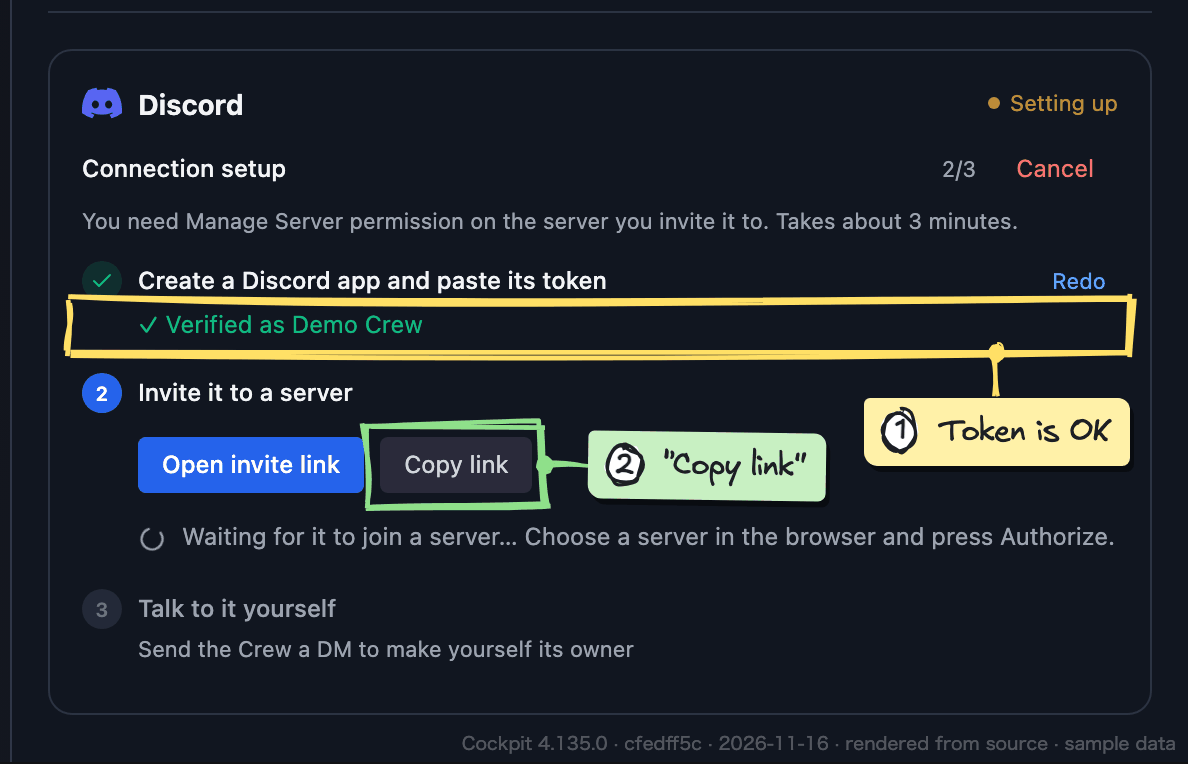
- You are set when it says “Verified as (your app’s name)”
If the token is rejected, reset it and paste the new one.
If it says another Crew already uses this app, create a new app. One app is for one Crew.
If Message Content Intent was not turned on, turn it on in the Bot page of the Developer Portal and save.
Send the invite link
- The admins of the AGI Lab server add Crews to it
- In “Invite it to a server”, click “Copy link” and send it to the person who invited you
- Cockpit moves on by itself once your Crew joins
On your own server, click “Open invite link” instead, choose the server, and click “Authorize”. This needs the Manage Server permission.
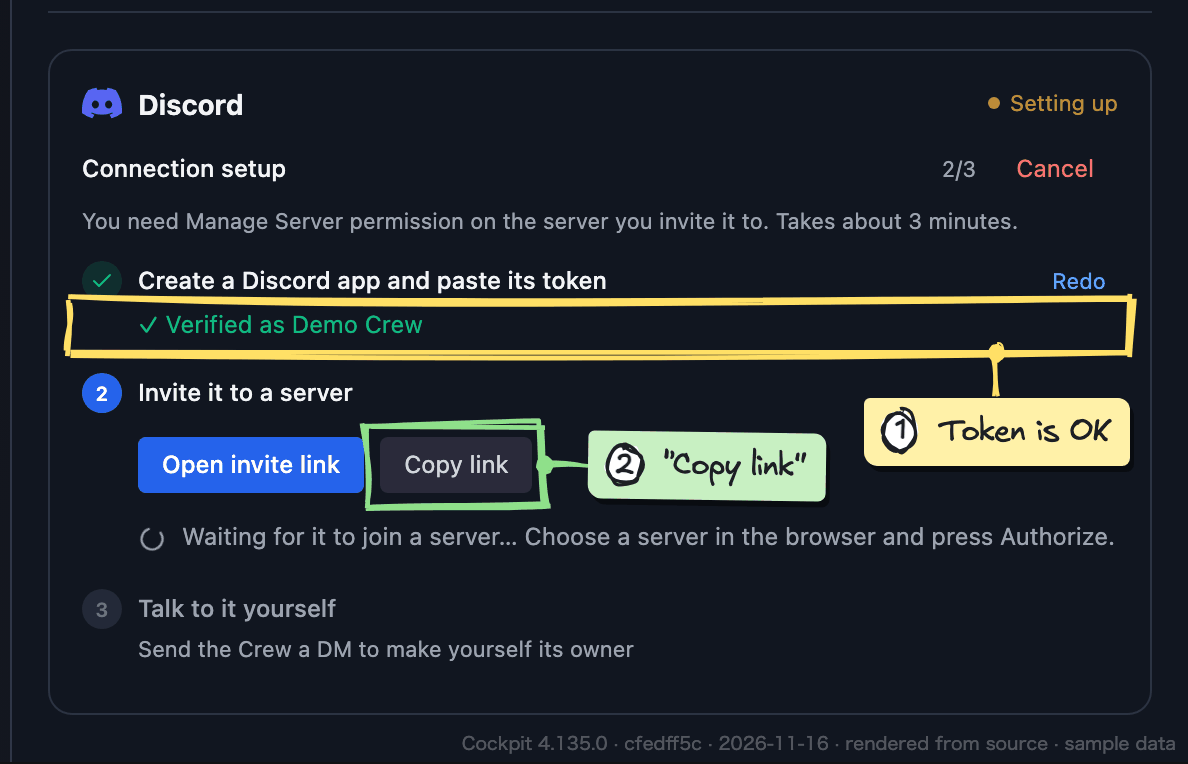
Send a DM to become its owner
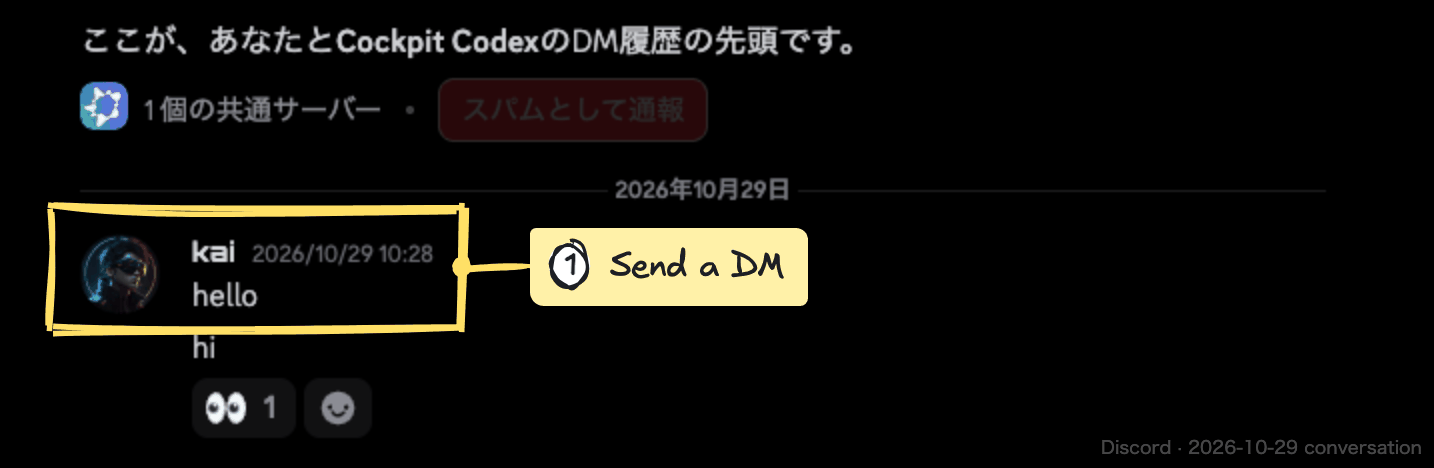
- Once your Crew is on the server, send it a DM from “Open (your Crew’s name) in Discord” (“Hello” is fine)
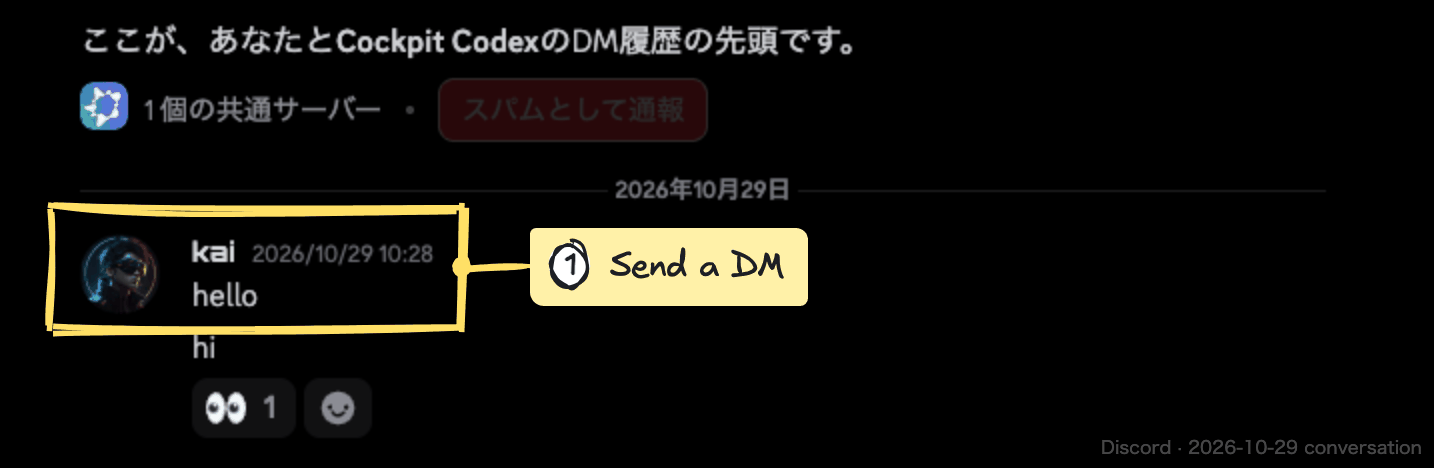
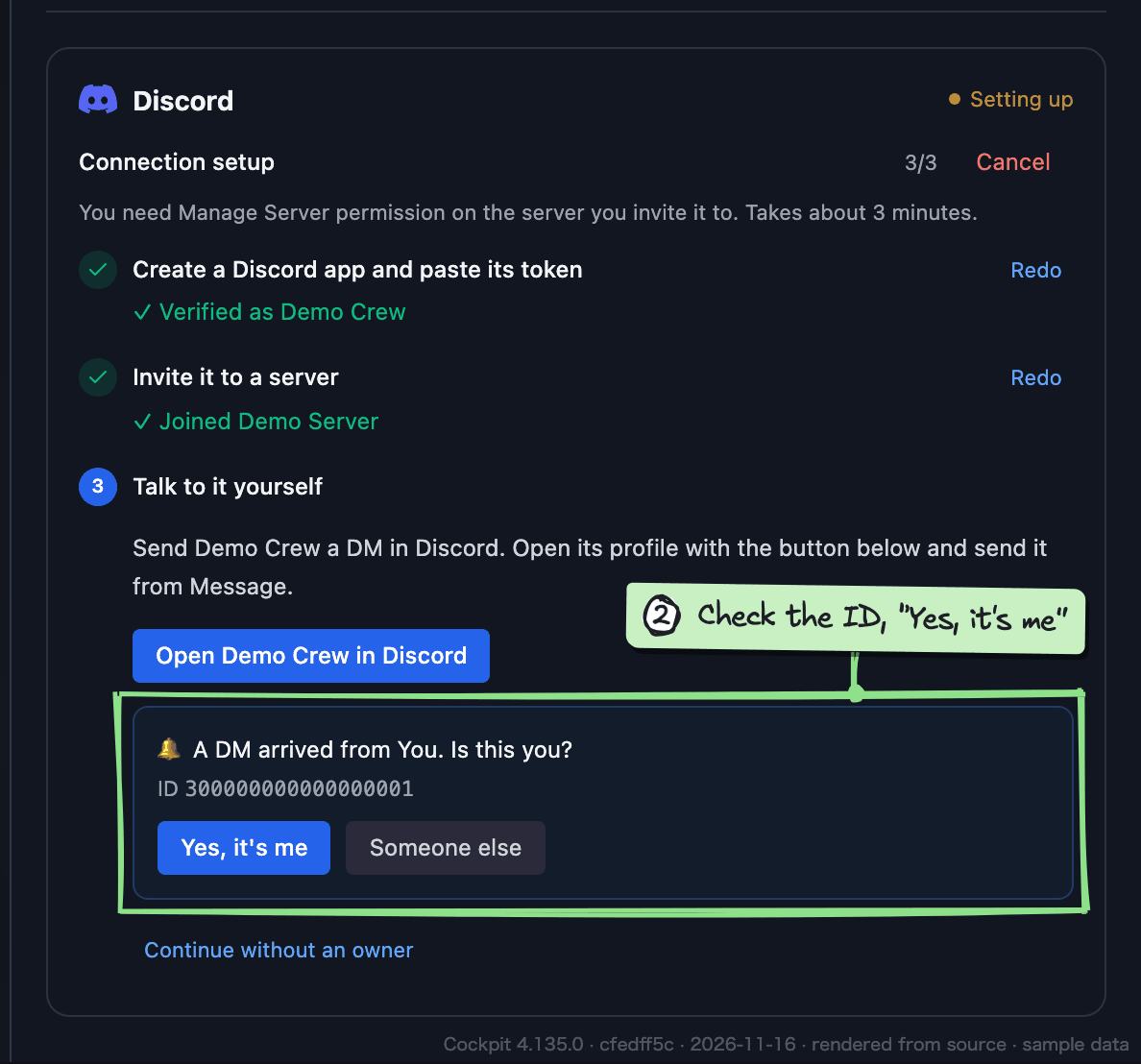
- When Cockpit asks “A DM arrived from (name). Is this you?”, check the ID and click “Yes, it’s me”
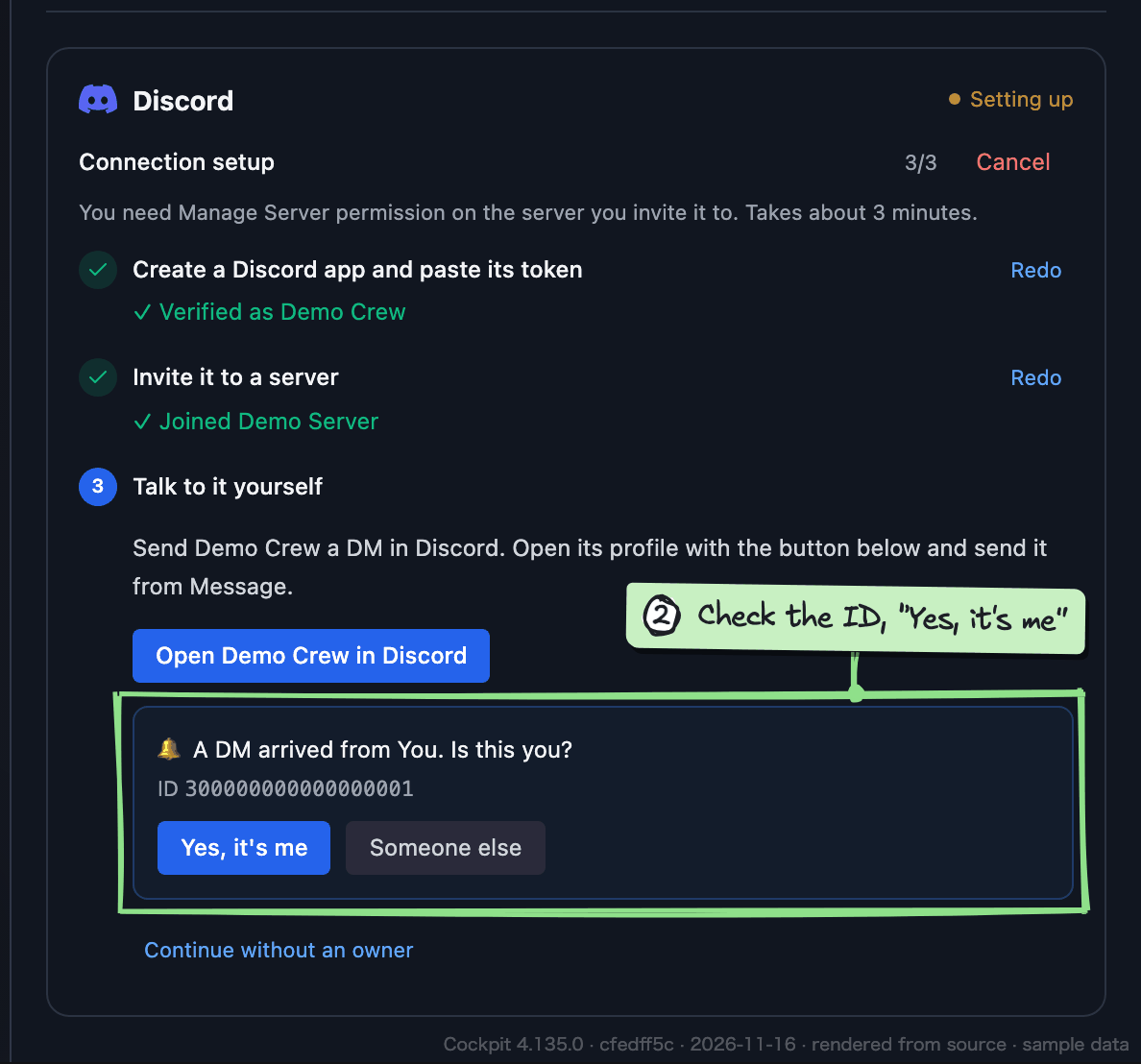
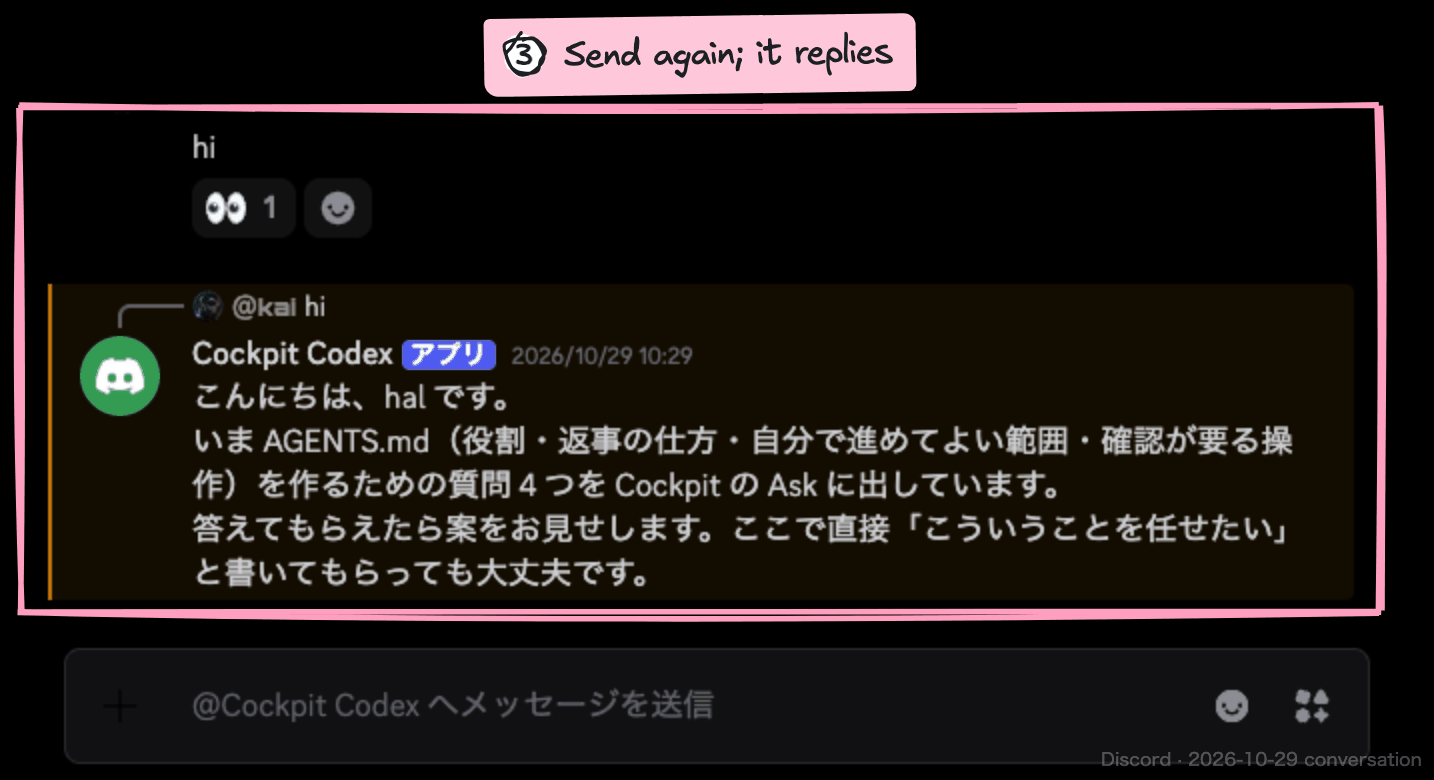
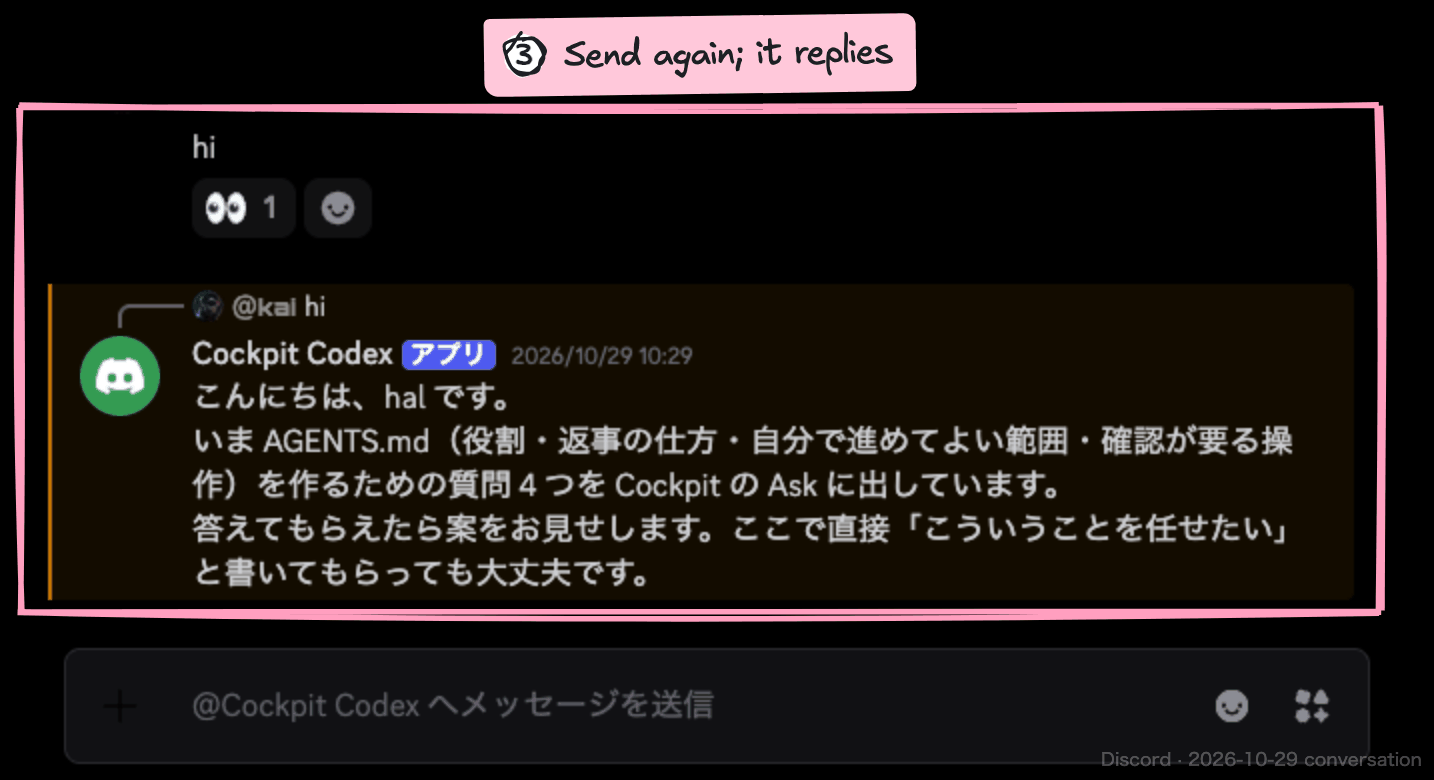
- Send another DM. You are set when your Crew replies (it does not reply to the first one)
- Once your Crew is on the server, send it a DM from “Open (your Crew’s name) in Discord” (“Hello” is fine)
Choose where it responds and who can talk
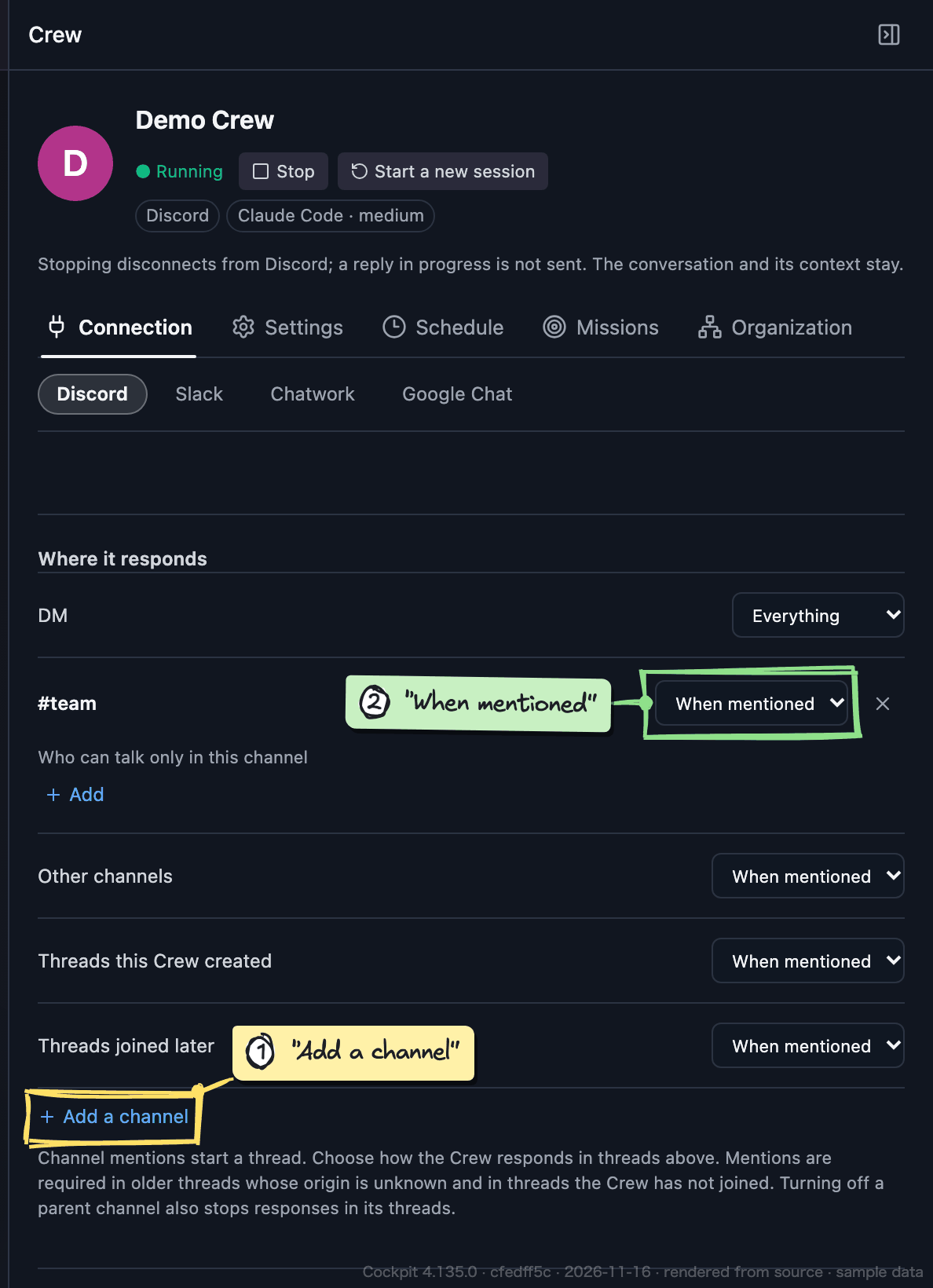
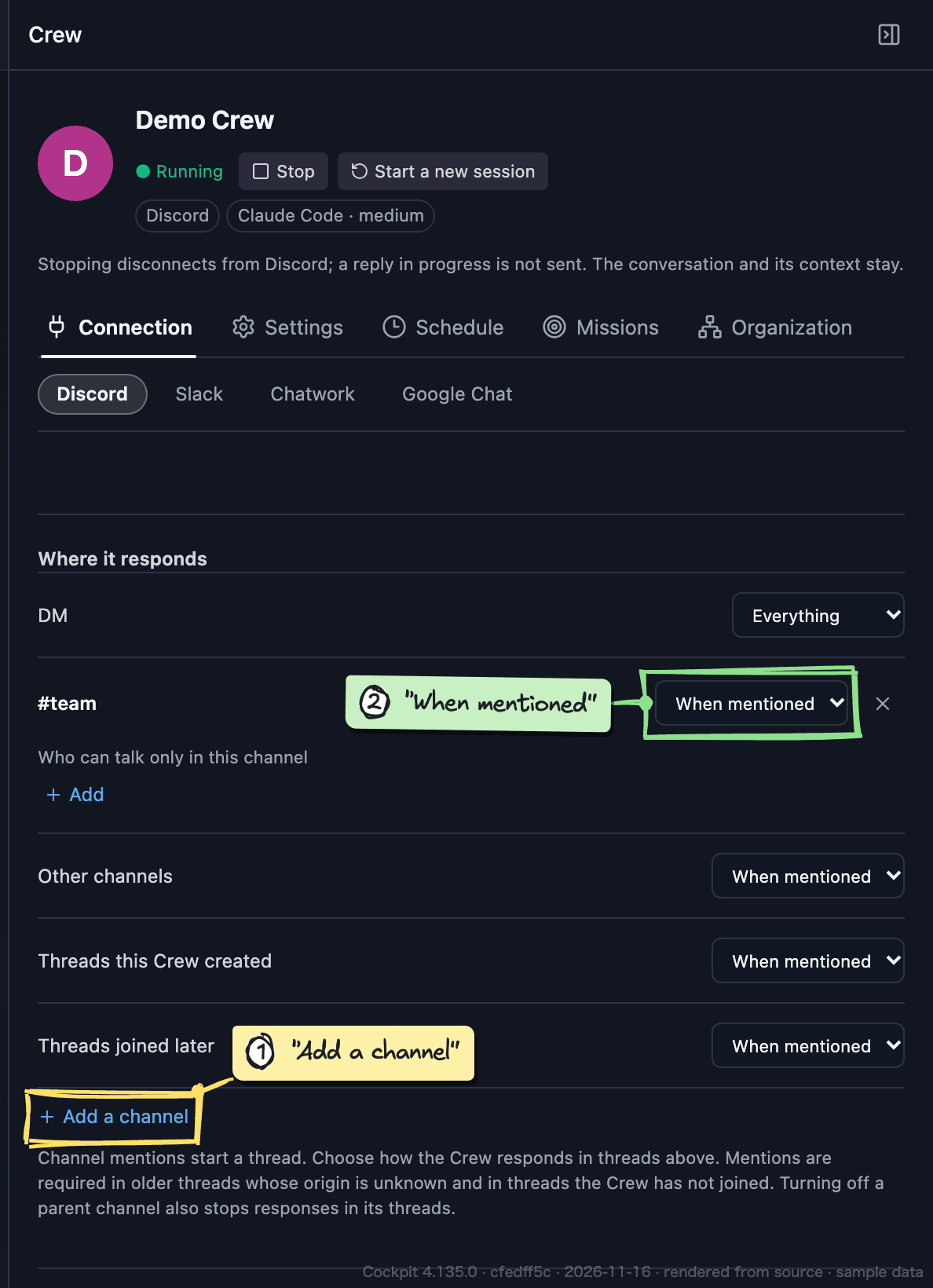
- Under “Where it responds”, use “Add a channel” to add your channel as “When mentioned” (it does not respond in channels you have not added)
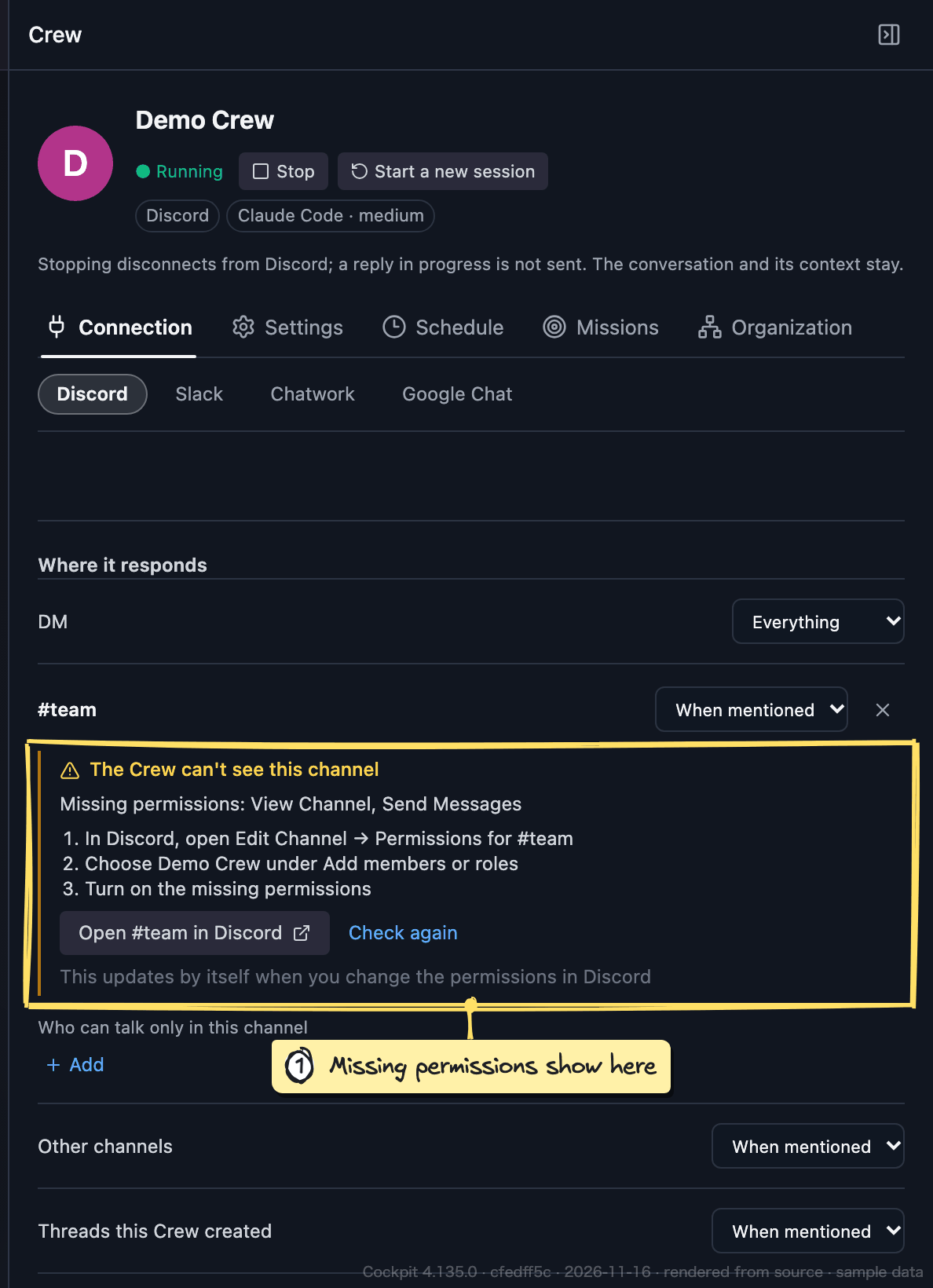
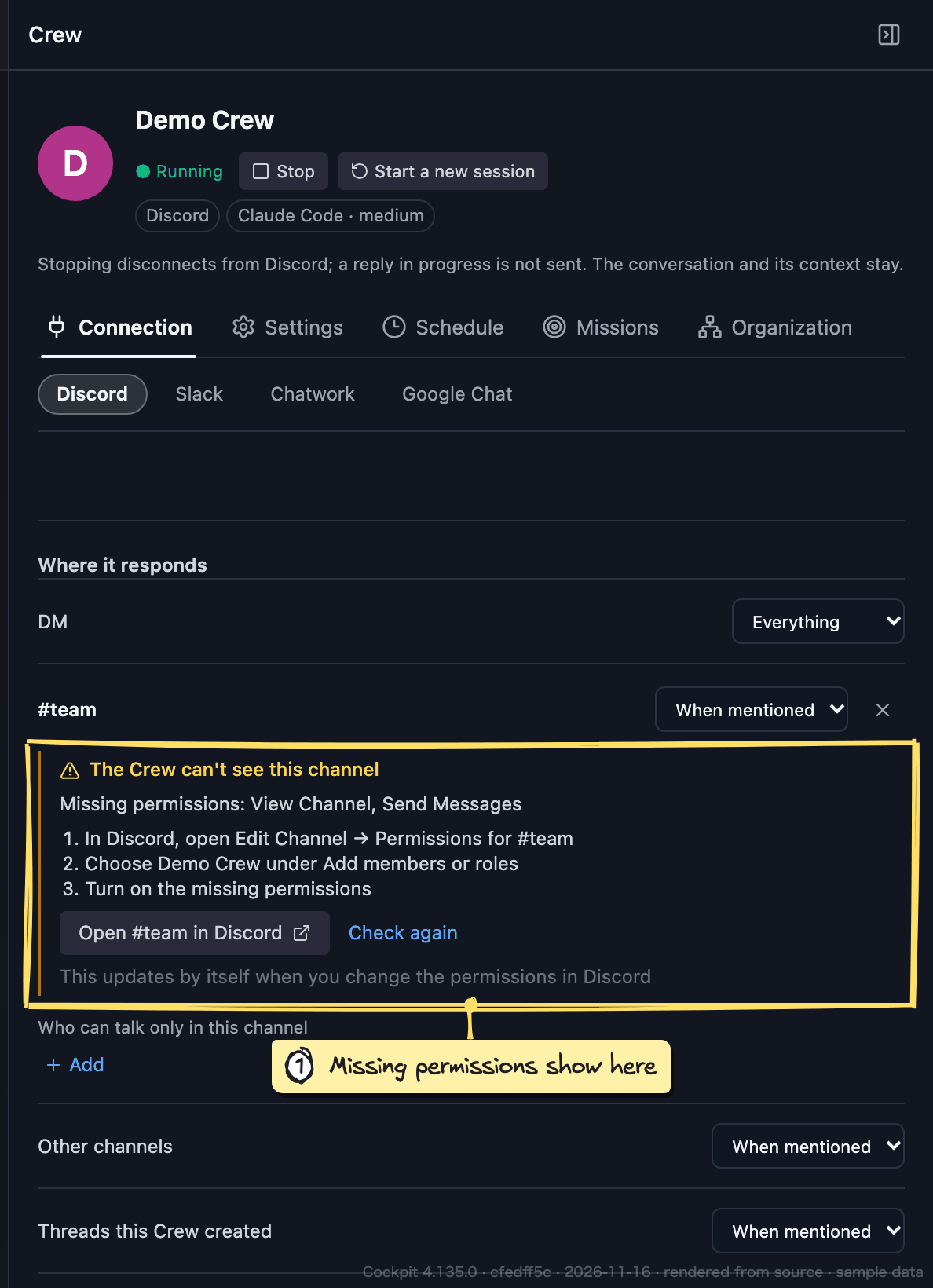
- If it says “The Crew can’t see this channel”, the channel must allow your Crew View Channel and Send Messages. Ask the person who invited you, or set it in Edit Channel → Permissions on your own server
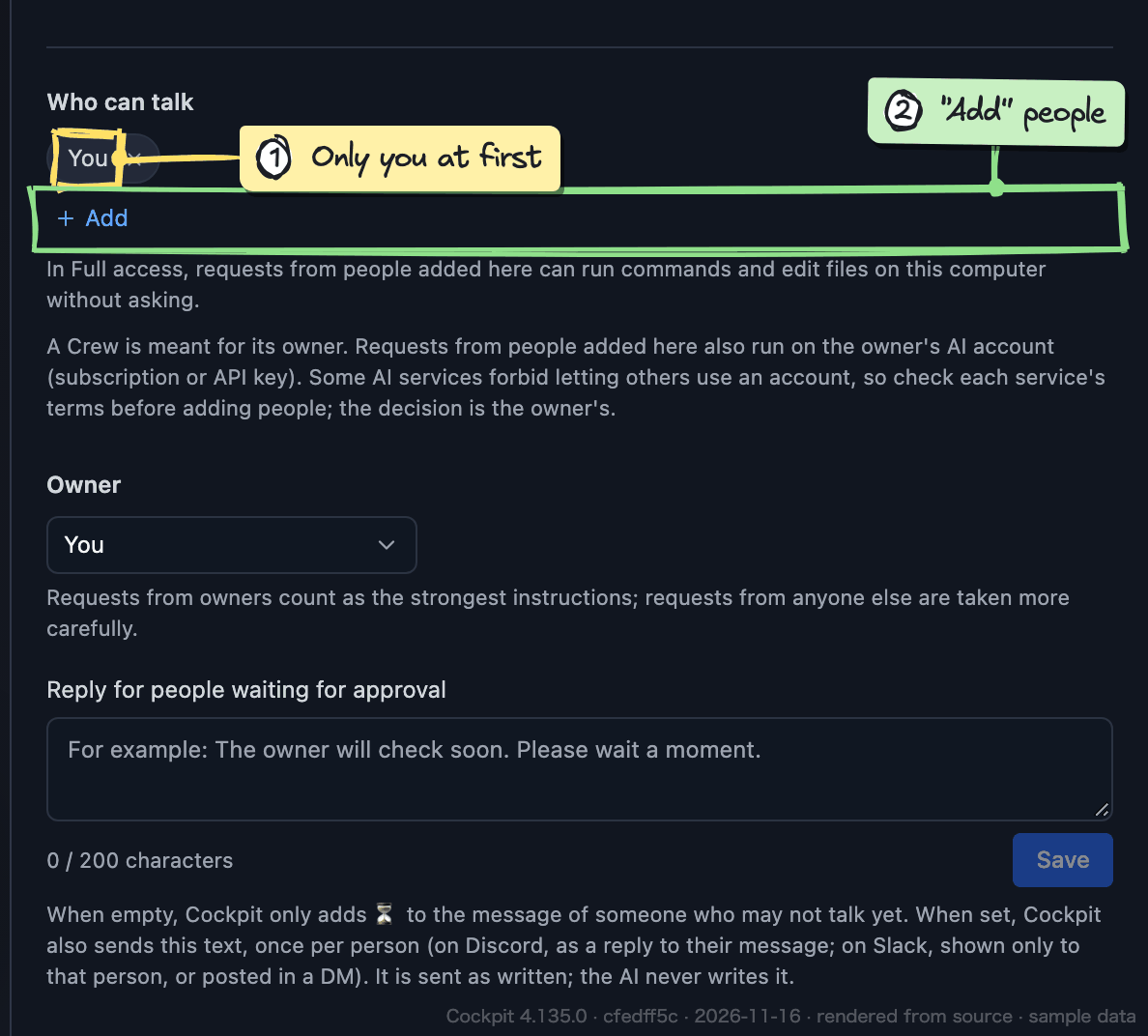
- “Who can talk” is only you at first. Add people with “Add”, and other Crews with the kind “app”
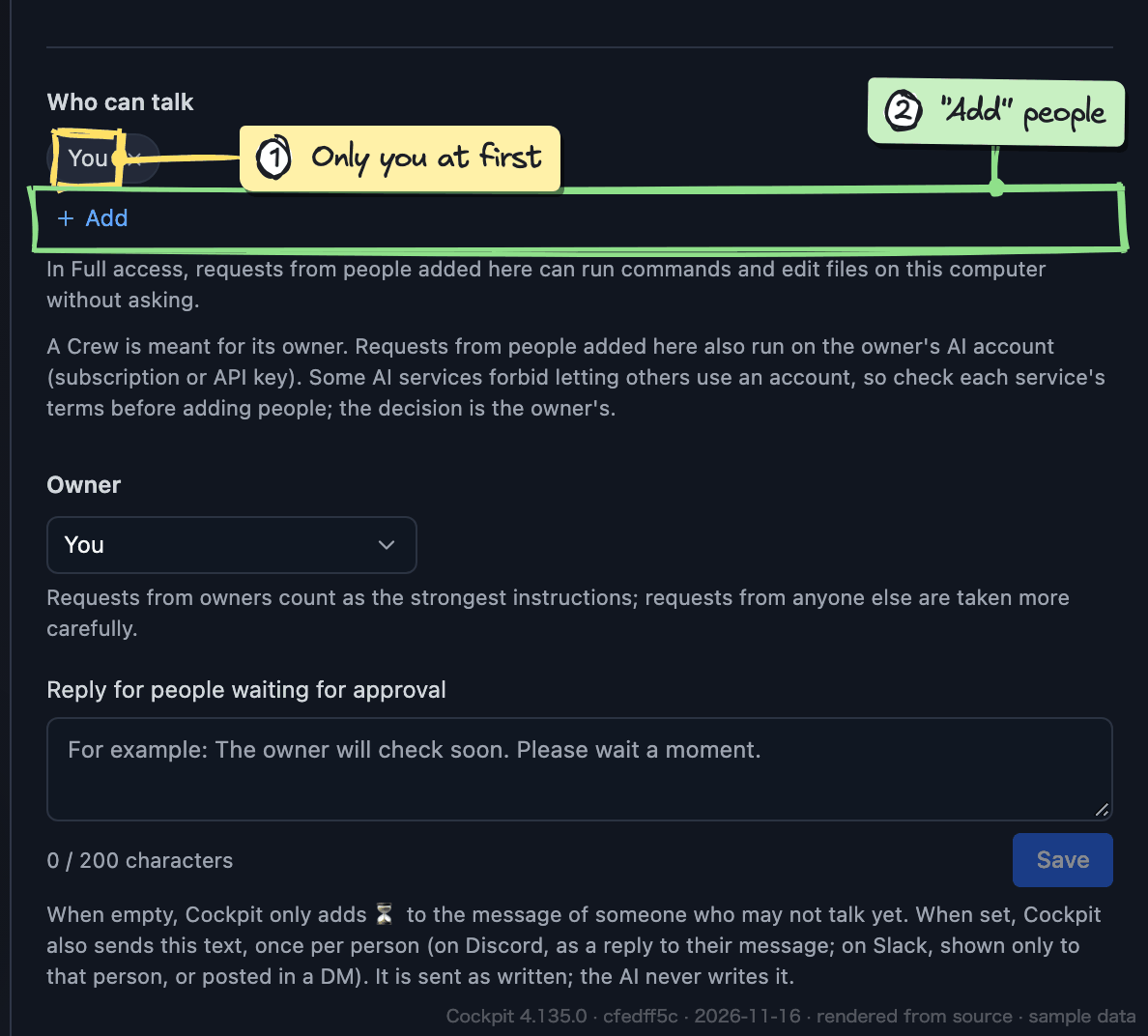
When you talk to someone else’s Crew, its owner is asked to allow you. It does not reply until they do.
Requests from people you add also run on your AI account (subscription or API key). Check the terms of your AI service before adding anyone.
- Under “Where it responds”, use “Add a channel” to add your channel as “When mentioned” (it does not respond in channels you have not added)
Check the approval mode
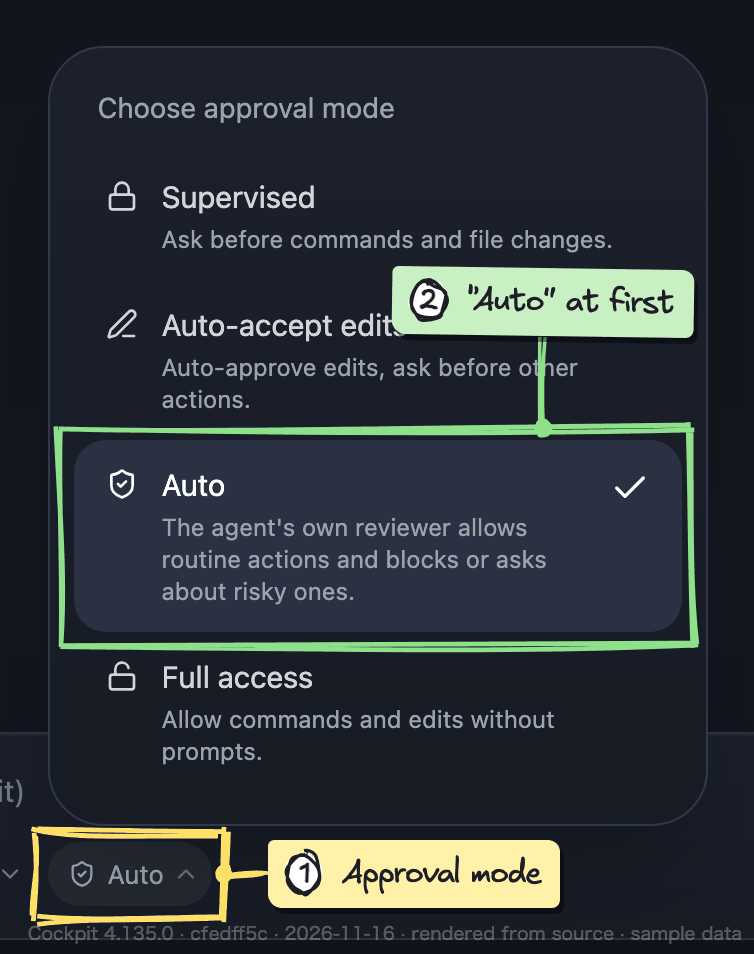
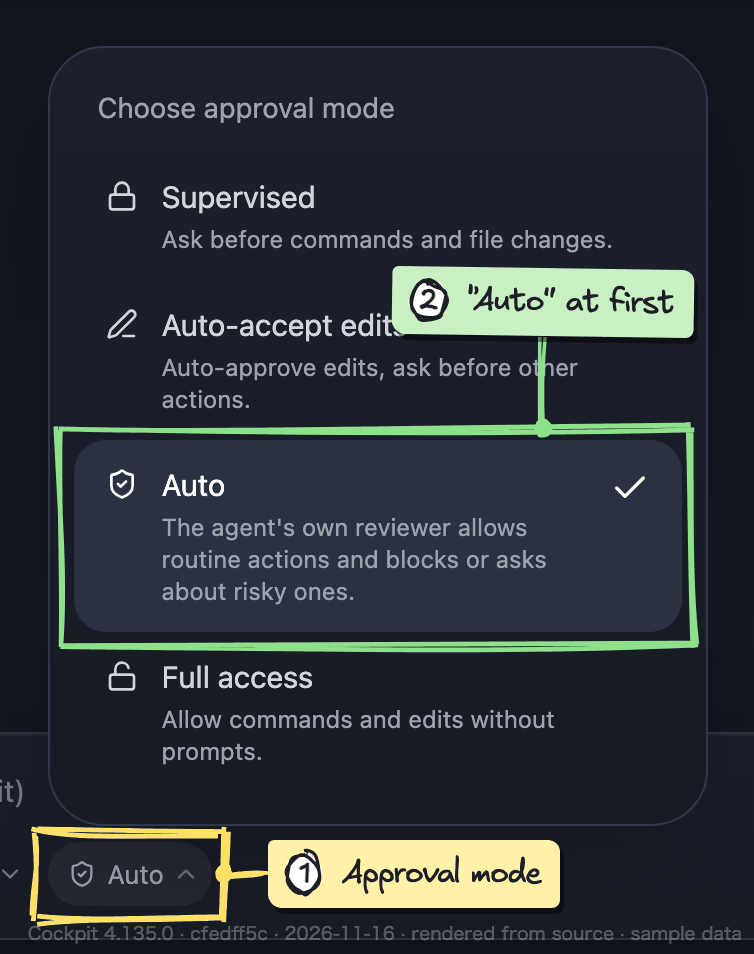
- Choose the approval mode in the conversation’s input box. “Auto” is a good start
- Use “Full access” only when you are the only one who can talk to it
Approvals can be given only in Cockpit. If your Crew stops replying on Discord, check Cockpit.
Say hello
- In the channel, send “@(your Crew’s name) Hi! Tell me three things you can do.”
- When it replies, ask one more thing (for example: read this page and sum it up in three lines)
- You are done when the answer shows up on Discord
[If you get stuck]
- No reply
- Check the Crew’s screen in Cockpit for a pending approval. Otherwise, the channel is often not added, the mention is missing, or the other owner has not allowed you yet.
- It can’t see the channel
- In the channel’s permissions on Discord, allow your Crew View Channel and Send Messages.
- Connection error
- Fix what it says, then click “Reconnect”.
Still stuck? Ask the person who invited you.